Appearance
The Appearance module sets the theme of the administration console, and dresses the user portal in the organisation's colours: a theme, two logos and a background image.
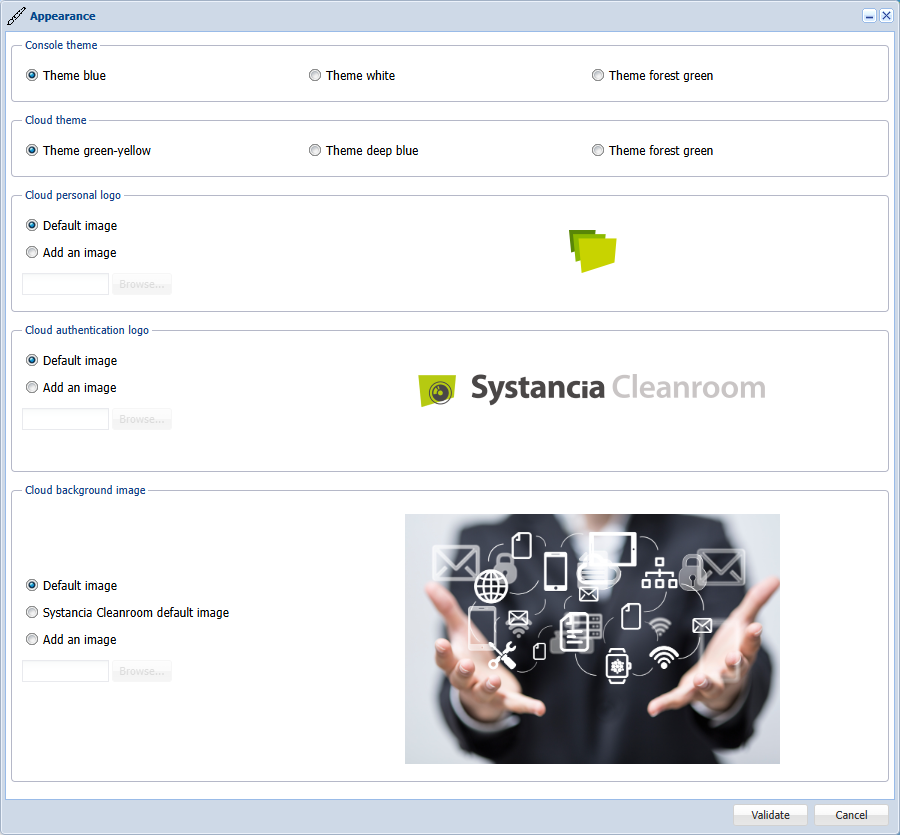
Settings visible to administrators
Console theme is the one setting that changes what the administrators see. The other four bear on what users see in the user portal. The system console keeps its own theme, which cannot be configured.
Settings and where they appear
- the Console theme determines the palette of the administration console: three values, Theme blue, Theme white or Theme forest green; the console is blue until another theme is chosen;
- the Cloud theme determines the user portal's palette: three values, Theme green-yellow, Theme deep blue or Theme forest green; there is no free colour;
- the authentication logo appears on the login page;
- the Cloud background image is that of the same login page;
- the personal logo is the small logo shown on the applications page, once the user is logged in.
Each logo and the background image accept either the image shipped by default or an uploaded image. The background image additionally offers a second shipped image, in the platform's own identity.
File picker
The file picker is greyed out until adding an image is chosen: it only becomes active when Add an image is ticked; the options that designate a shipped image disable it and replace the preview.
Add an image without a file
Ticking Add an image without choosing a file has no effect. The save is accepted, the window closes, but neither the type nor the image changes: the previous state is kept. No message reports that the file was missing. This is the first cause to check when a setting is not taken into account.
Saving without changes
Saving without having changed anything does not call the server: the window closes without a message. That is not a failure.
Accepted formats
Only PNG, JPG and JPEG are accepted, and the check does not stop at the extension:
the platform reads the first bytes of the file and refuses an image whose content does not
match. A GIF renamed to .png is therefore refused, and the error message stays that of a
disallowed format, without stating that the content is the cause.
Size and dimensions
Nothing bounds the weight or the dimensions of the image. As a consequence, a multi-megabyte photograph set as the background will be downloaded by every visitor each time the login page is displayed. Sizing the image before uploading it is up to the administrator.
Accents in a file name are stripped on upload; the file is accepted, only its name on the server changes.
Applying the console theme
When the saved console theme differs from the one displayed, the console reloads at once in the new theme. Every administrator of the organisation sees it from their next page load. As long as no theme has been saved, the window ticks the one the console is currently using.
User portal theme
Window previews
Changing the Cloud theme does not alter any of the four previews in this window when switching from one theme to the other. The setting is nevertheless saved and applied to the user portal: the only way to see it is to open the portal. The absence of change in the previews does not indicate that the setting was not taken into account.
Scope of the setting
Appearance is set per organisation: two organisations on the same platform can have two different looks. In Cluster, uploaded images are copied over to the other node on save.
Limits
- The system console is out of reach: its theme is fixed.
- Each theme is a choice between three named palettes; no colour can be entered.
- No text, no font, no tab icon can be customised: only three images and two themes.
- PNG, JPG and JPEG only, checked against the real content of the file.
- No weight or dimension limit is enforced by the platform.
- The same image used in two places is not removed from the server when it is dropped from only one of them.