Installation of the Mediation Controller server
Security hardening of the appliance
The appliance applies part of the recommendations of the advanced security hardening guide when it is built; the state of each recommendation, and what remains to be done after deployment, is given in Security hardening of the Mediation Controller appliances.
Initial system settings
The Mediation Controller Standalone appliance (OVA_Cleanroom_Mediation_Standalone_4.7.0.75.ova) installs CyberElements Bastion with the CyberElements Gate console (/mediation/system), with the same components as the ipdiva-safe-server package of an installation from scratch (see CyberElements Gate console).
When the Mediation Controller Standalone appliance is started for the first time, an initial machine configuration wizard appears. This wizard allows you to initialise the system-specific configuration as well as those specific to the use of CyberElements Bastion.
Systems settings
The wizard begins by asking you to select a language: 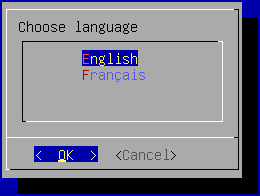
Information
The language you choose will affect both the system display language and the keyboard layout. In English, the keyboard will have a QWERTY layout, while in French it will be AZERTY.
The wizard then asks you to confirm the chosen language.
The wizard then asks you to add a new password for the root system account (make sure it meets the required complexity): 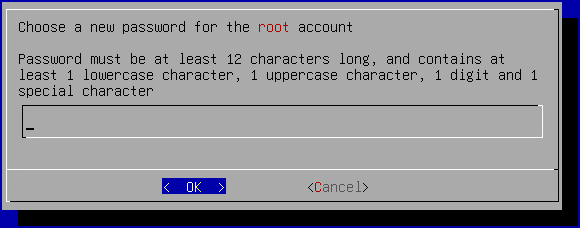
Next, you need to change the systancia system user account password (make sure it meets the required complexity): 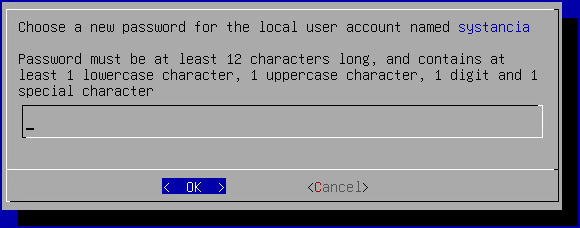
Finally, you need to enter the machine name: 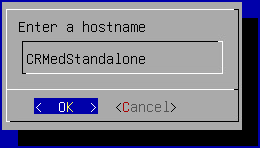
Network settings
Once the system settings have been applied, the wizard switches to the machine's network settings.
The Mediation Controller must have two fixed IP addresses. The first is used to access the product's various consoles and web portal. The wizard asks you to configure it first: 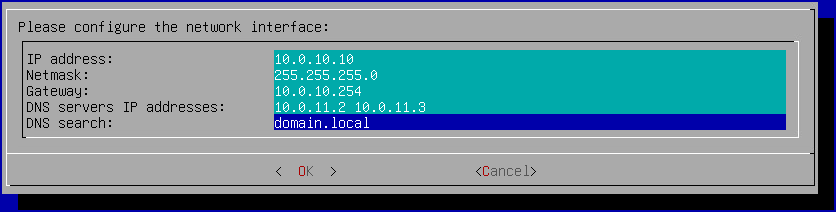
Tip
Several DNS servers can be entered (3 maximum) by separating them with spaces. Similarly, several DNS suffixes can be added by separating them with a space.
Next comes the configuration of the second IP address dedicated to the SSL Router component: 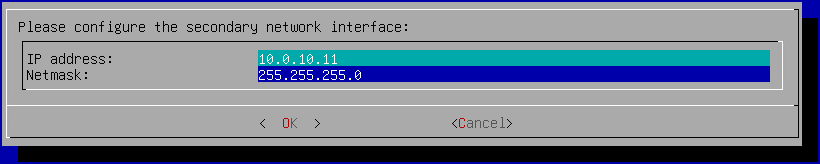
Settings specific to CyberElements Bastion operation
Once the network settings have been applied, a final configuration step specific to CyberElements Bastion is required: 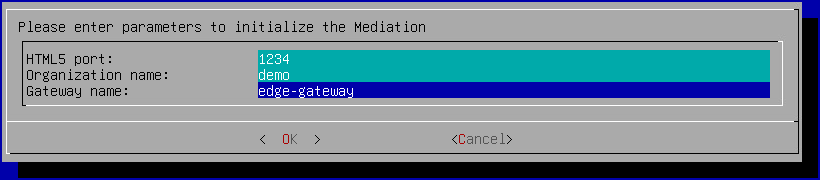
HTML5 port-
Definition of the local listening port for access to the HTML5 component. We recommend leaving the parameter at its default value
1234. If you do not plan to have an HTML5 Gateway, the field must still have a value. Organization name-
Name of the organisation that will be used to access the HTML5 component. If you do not plan to have an HTML5 Gateway, then the field must be filled in with a fictitious value (this is not a standard installation).
Gateway name-
Name of the Edge Gateway (corresponds to the part before the
@in the CN of the certificate that will be used by the Edge Gateway), which also acts as the HTML5 Gateway. If you do not plan to have an HTML5 Gateway, then the field must be filled in with a fictitious value (this is not a standard installation).
Organisation and Edge Gateway names
The wizard does not create the organisation or the Edge Gateway: it only declares, on the SSL Router, the
HTML5 service <Gateway name>@<Organization name> on the local port HTML5 port. The organisation
(card 6 below) and the Edge Gateway (card 7) must then be
created with exactly these names.
The wizard then asks for the password of the Super-user account of the system console (/system), and for its
confirmation, then indicates that the configuration of the Mediation Controller is finished.
To complete the operation, restart the server with the following command:
1 | |
Connecting as root
Once the initial configuration wizard has finished, the root account is not accepted directly, neither in
console mode nor over SSH (PermitRootLogin no). Log in with the systancia account, then switch to the root
account with the following command and the root password set in the wizard:
1 | |
Configuring an NTP time server
It is recommended to set up a time server to keep the system clock up to date. The necessary steps are described on the NTP configuration page.
Initial configurations on CyberElements Bastion
At this stage, the Mediation Controller server is installed, but several actions still need to be performed:
-
Check the passwords of the system consoles
The Super-user password chosen in the wizard gives access to the CyberElements Bastion system console (
/system) and to the CyberElements Gate system console (/mediation/system): the default password given on the linked page does not apply to the appliance. -
Install certificates and licences
The Mediation Controller requires various certificates and a licence to be operational.
-
Configure the web certificate used to connect to web interfaces
-
Add a DNS name authorised to connect to web interfaces.
-
Configure the SSL virtual host
Configuration of the CyberElements Bastion SSL virtual host, which allows you to specify the connection address to the SSL Router for clients and the Edge Gateway pairing mechanism. On the appliance, the
defaultSSL virtual host is pre-filled with the web address and the port563: replace them with the address and port of the SSL Router indicated in the licence. -
Configure the CyberElements Bastion organisation.
-
Declare the Edge Gateways or HTML5 Gateways to be installed and generate a pairing token.
-
Create and configure a logical site that groups together Edge Gateways and HTML5 Gateways that can access local resources.
-
Install and configure a new Edge Gateway with the newly installed Mediation Controller server.
An HTML5 Gateway instance will also be configured.