Creating a pairing token for an Edge Gateway
To create a pairing token, you need to create a new Edge Gateway or HTML5 Gateway (or edit an existing Edge Gateway or HTML5 Gateway by recreating a pairing token).
Access the web interface of the Mediation Controller server with the /console URI.
Examples
If access to the Mediation Controller on its web IP address is 10.0.10.10, then the administration console is reached at https://10.0.10.10/console.
If the Mediation Controller is reachable by a DNS name, for example cyberelements-bastion.domain.local, then the administration console is reached at https://cyberelements-bastion.domain.local/console.
Once logged in, follow the steps below according to your platform type and the type of Edge Gateway that needs to be created.
Required prerequisites
In order to successfully create a new Edge Gateway, you must obtain at least one certificate for the Edge Gateway connection and a second optional certificate for the direct access recording service to function.
The certificate for the Edge Gateway must be a client authentication certificate and have a CN in the form edge-gateway-name@organization-name. Where:
edge-gateway-namecorresponds to the logical name of the Edge Gateway (since a single Edge Gateway machine can have several instances running in parallel, the name of the Edge Gateway may differ from the name assigned to the machine). The name must not contain accented characters or spaces, and the only special characters allowed are-and_.organization-namecorresponds to the name of the organisation to which the Edge Gateway will connect. Since a Mediation Controller can have several organisations, this information is essential for it to know which organisation it is attached to.
The certificate for the recording service must be a server authentication certificate whose CN is the FQDN of the Edge Gateway machine, never the edge-gateway-name@organization-name form. This FQDN must be resolved by DNS from the servers that host the direct recording agent: they reach the Edge Gateway by this name.
Please note that the Mediation Controller will reject any certificate that does not come from a trusted PKI/certification authority. To add a new trusted PKI/certification authority, please follow the instructions on the following page: Add a trusted certificate authority
-
Open the Edge Gateway management module:
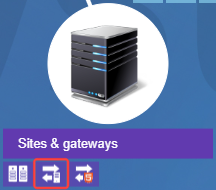
-
Create a new Edge Gateway by clicking on the + icon:
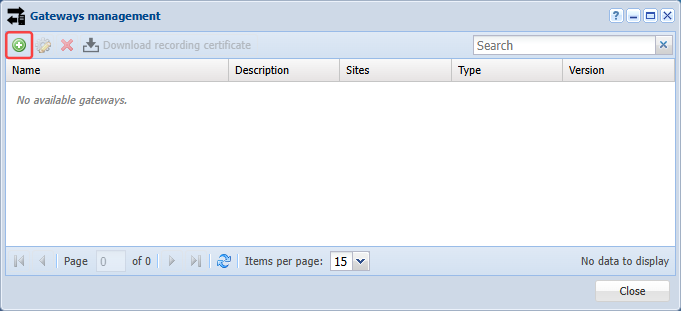
-
Fill in the various fields requested by the interface:
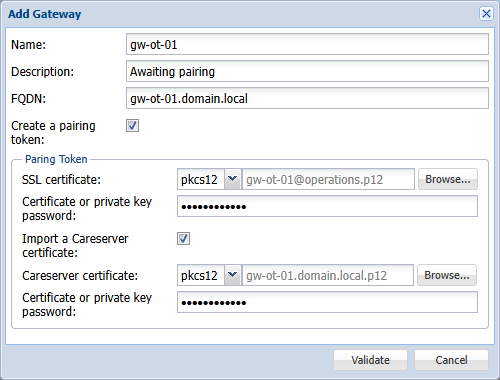
- Name the new Edge Gateway.
- Optionally, enter a description to better identify it or understand its use.
- Define the FQDN of the machine. This is important information that must match the CN of the certificate for the recording service.
- Check the option to create a pairing token.
- In
SSL certificate, select the Edge Gateway certificate (pkcs12format by default), then enter its password inCertificate or private key password. - Optionally (recommended when creating the first Edge Gateway instance on the machine), check
Import a Careserver certificate, then add the recording service certificate inCareserver certificatewith its password.
-
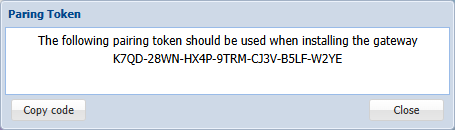
The pairing token is then generated and displayed on the screen:
Required prerequisites
In order to successfully create a new HTML5 Gateway, you must obtain a certificate for connecting to it.
The certificate for the HTML5 Gateway must be a client authentication certificate and have a CN in the form html5-gateway-name@organization-name. Where:
html5-gateway-namecorresponds to the logical name of the HTML5 Gateway (since a single HTML5 Gateway machine can have several instances running in parallel, the name of the HTML5 Gateway may differ from the name assigned to the machine). The name must not contain accented characters or spaces, and the only special characters allowed are-and_.organization-namecorresponds to the name of the organisation to which the HTML5 Gateway will need to connect. Since a Mediation Controller can have several organisations, this information is essential for it to know which organisation it is attached to.
Please note that the Mediation Controller will reject any certificate that does not come from a trusted PKI/certification authority. To add a new trusted PKI/certification authority, please follow the instructions on the following page: Add a trusted certificate authority
-
Open the HTML5 Gateway management module:
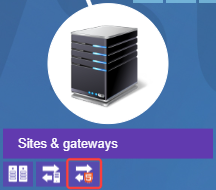
-
Create a new HTML5 Gateway by clicking on the + icon:
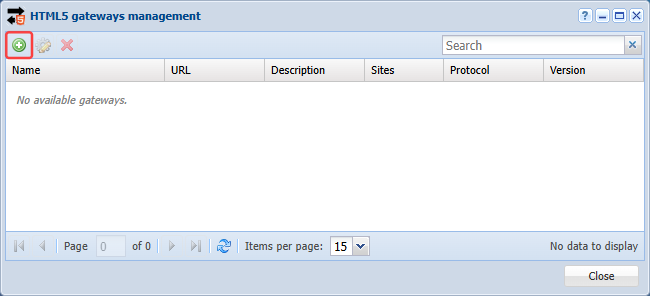
-
Fill in the various fields requested by the interface:
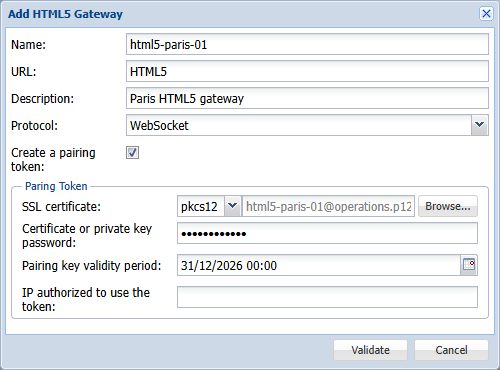
- Name the new HTML5 Gateway.
- Specify the access URL (for a first instance in standalone architecture, this is commonly
HTML5; for a cluster, it isHTML5-1andHTML5-2). - Optionally, enter a description to better identify it or understand its use.
- Select the protocol:
WebSocket, recommended, orHTTP(historical mode, proposed by default); the configuration of the Mediation Controller depends on it. - Check the option to create a pairing token.
- In
SSL certificate, select the HTML5 Gateway certificate (pkcs12format by default), then enter its password inCertificate or private key password. The two following fields become available once a valid certificate is selected. - Define the pairing token's validity period.
- Optionally, restrict the use of the token to an IP address. Please note that this is the IP address seen by the Mediation Controller. If the HTML5 Gateway is part of the same network as the Mediation Controller, it will probably be the private IP address; otherwise, it will be the public IP address.
-
The pairing token is then generated and displayed on the screen:
Tip
If the token has been lost or could not be retrieved after creation, editing the settings of the new Edge Gateway will display it again.
Once the pairing token has been obtained, it can be used on an Edge Gateway or HTML5 Gateway with the following instructions: Connecting an Edge Gateway with a pairing token.