Installation of the Mediation Controller server
Note
As a reminder, switching to root on Debian machines must be done with the following command:
1 | |
Values used on this page
The following values are used in several commands and configuration files of this page. Enter them here: the commands displayed on this page are updated as you type.
A value used by a single command is entered in a table placed just before that command.
| Value | Variable | Definition |
|---|---|---|
IP_MC_WEB |
Main IP address of the Mediation Controller: the web consoles are reached through it. | |
IP_MC_SSL |
Secondary IP address of the Mediation Controller: the SSL Router is reached through it. |
Downloading the mirror and necessary tools
The CyberElements Bastion 4.7 mirror and the Systancia repository signature key for Debian 13 can be downloaded from this link (requires the creation of a client account): Systancia Marketplace
In addition to the mirror and key, third-party tools will be required for the installation process:
- An SSH client (on Windows, you can use PuTTY)
- An SCP client (on Windows, the WinSCP or FileZilla tools can be used)
Use the SSH client to connect remotely to your server.
Use the SCP client to transfer files to your remote machine.
Preparing for installation
Configuration of the network
It is essential to configure a static network address for the Mediation Controller. To do this, you first need to retrieve the name of your machine's network interface. Run the following command as root:
1 | |
This command displays the name of the network interface, its status, and the IP addresses assigned to the interface.
Example
After the command is executed, the following output is displayed:
1 | |
The name of the network interface is ens192.
Once the network interface name has been obtained, it is now possible to edit the machine's network configuration.
Edit the /etc/network/interfaces file to modify it using the following template:
| Value | Variable | Definition |
|---|---|---|
INTERFACE_NAME |
Name of the network interface, retrieved with the previous command. | |
NETMASK |
Network mask associated with the IP addresses. | |
NETWORK_GATEWAY |
Default network gateway. | |
IP_DNS_1 |
IP address of the DNS server. | |
IP_DNS_2 |
IP address of a second DNS server (optional: left empty, it disappears from the configuration). | |
DNS_SUFFIX |
DNS suffix to use; without a suffix, delete the dns-search line. |
1 2 3 4 5 6 7 8 9 10 11 12 13 14 15 16 17 18 19 20 21 22 23 | |
Example
1 2 3 4 5 6 7 8 9 10 11 12 13 14 15 16 17 18 19 20 21 22 23 | |
Before applying the configuration, there are three more steps to complete.
The first is to install the resolvconf package so that the DNS configuration specified in the previous file can be applied:
1 | |
The second is to check the configuration of the /etc/hosts file with regard to the machine's primary IP address (IP_MC_WEB).
To do this, edit the /etc/hosts file: after the Debian installation, its second line holds the address 127.0.1.1 followed by the machine name. Replace this address with IP_MC_WEB, so that the second line is in the following format:
| Value | Variable | Definition |
|---|---|---|
FQDN |
Fully qualified name of the machine (name and domain); without a domain, delete it from the line. | |
MACHINE_NAME |
Short name of the machine. |
2 | |
Example
If the machine is named MEDIATION-CONTROLLER without belonging to a domain and its IP address IP_MC_WEB is 10.0.10.10, then the file would be completed as follows:
2 | |
If the machine belongs to the DOMAIN.LOCAL domain, then the file would be completed as follows:
2 | |
Attention!
An incorrect configuration of the file may cause an error when installing the collectd package.
Finally, restart the server to load the new network configuration. Restarting the networking service is not enough: the address obtained by DHCP during the Debian installation is only released by a restart.
1 | |
Configuring the APT package manager
Upload the files downloaded from the Systancia Marketplace to the /tmp/ directory on the server using an SCP client:
systancia.gpgcleanroom-4.7.0-build75.1097.D13-full_auto.tgz
Log in to the server as root, then run the following commands to unzip the Systancia repository, configure its use in APT, and authenticate it.
1 2 3 4 5 6 | |
We strongly recommend disabling the installation of unnecessary packages when running apt commands. To do so, run the following command:
1 | |
Then update the Debian packages already installed on the server:
1 2 | |
Recommendation
The security hardening guide details the integrity check of the packages and of the APT repositories, and the automation of Debian security updates: see R6 and R7.
Checking for the presence of the en_US.utf8 locale
Installing the Mediation Controller server requires the generation of en_US.utf8 locales.
To check whether they have already been generated on the server, run the following command as root:
1 | |
If the command response displays en_US.utf8 then proceed to the next step of the GRUB configuration.
Otherwise, run the following commands to add this locale to the machine:
1 2 | |
Removing the systemd-timesyncd package
The Mediation Controller synchronises its clock with NTPsec, which cannot coexist with the systemd-timesyncd service present on some Debian 13 installations. If this package is installed, the installation of the Mediation Controller components fails. Remove it beforehand with the following command as root (it has no effect if the package is absent):
1 | |
Configuring the GRUB boot program
Recommendation
The security hardening guide details the advanced boot options and the setting of a GRUB password: see R15 and R16.
Once these commands have been executed, you must restart the machine after applying a setting in the GRUB boot program:
1 2 3 | |
Installation of the CyberElements Bastion Mediation Controller server
Installation of basic components
Start installing the components using the following command as root:
1 | |
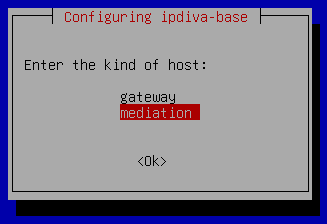
After downloading all dependencies, a window will open asking you to select the server type. Select mediation:
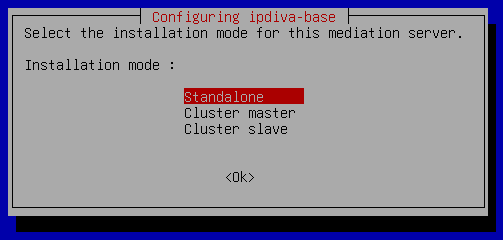
Then select the Standalone installation mode:
Then you will need to enter the port that the SSL Router will listen on. This listening port is usually set to 443 but the 8443 port can also be used if only one IP is used by the mediation server:

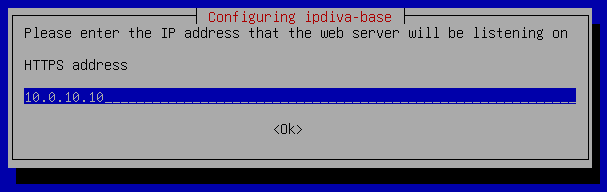
Then enter the web access address for the Mediation Controller server (corresponds to IP_MC_WEB in the network configuration):
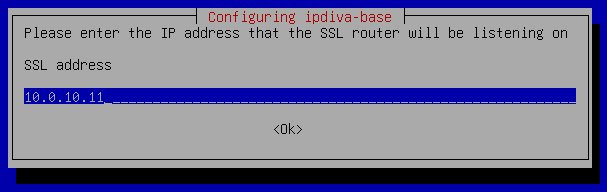
Finally, enter the IP address of the SSL Router (corresponds to IP_MC_SSL in the network configuration):
The values entered are recorded in /etc/ipdiva.conf. Check them:
1 | |
Example for a standalone Mediation Controller
1 2 3 4 5 6 | |
What should I do if there is an error?
If there is an error in the information you entered, continue installing the ipdiva-base package and then use the following command to reconfigure the server:
1 | |
Installation of specific components
Start installing the components specific to the Mediation Controller server with the following command:
1 | |
During the installation, a window asks for the initial password of the super-user account (SU) of the CyberElements Bastion system console (/system), then for its confirmation. This password is the one used for the first connection to the system console.
The password should be at least 10 characters long and contain at least one lowercase letter, one uppercase letter, one digit and one special character. If it does not meet these criteria, a second window asks whether to keep it anyway (Use weak SU password): answer No to enter another one.
Note
The window only appears if no SU password is defined yet on the server: a reinstallation or an upgrade of the packages does not ask for it again.
The server must be restarted to complete the installation (use the reboot command).
Publish the Gate portal
The CyberElements Bastion components only publish the Gate portal if a Gate organisation already
exists when they are installed, which is never the case on a new installation: the CyberElements
Gate system console (/mediation/system) then answers with a 403 error. After the restart, log in to the
CyberElements Bastion system console (/system), open the Virtual Hosts tile, then the
Web virtualhosts tab. Edit the default virtual host, check Publish Gate portal and
validate: the web server restarts.
Installation of drivers for connecting to Microsoft SQL Server databases
If you want to connect to an external database and it is a Microsoft SQL Server, then additional ODBC drivers must be installed.
Two versions are available: version 17 and version 18.
TLS connection required for drivers in version 18
Using ODBC 18 drivers requires that the connection be encrypted using TLS. To do this, you need to configure MS SQL Server for connection encryption.
The Mediation Controller checks the certificate of SQL Server against the certification
authorities known to Debian: on each Mediation Controller server, add the certification
authority that issued this certificate (PEM format, .crt extension), as root:
1 2 | |
The Edge Gateways of a tunnel do not need it: they relay the connection without decrypting it.
Before starting the installation of ODBC drivers, you must prepare the Microsoft repository for Debian 13. The packages-microsoft-prod package provided by Microsoft declares this repository and installs its signature key:
1 2 3 4 5 | |
Next, install the drivers according to the selected version and configure the system to use the sqlcmd command:
1 2 | |
1 2 | |
The ODBC drivers are now correctly installed.
If the Mediation Controller server has access to an MS SQL server, the following command should allow the connection to the remote server:
| Value | Variable | Definition |
|---|---|---|
MSSQL_SERVER |
DNS name or IP address of the MS SQL server. | |
MSSQL_INSTANCE |
Name of the instance to connect to (optional: left empty, it disappears; then also delete the backslash). | |
MSSQL_PORT |
Connection port of the MS SQL database instance. | |
MSSQL_USER |
Username used to establish the connection. |
1 | |
Examples
If the Mediation Controller server has access to an MS SQL database server via the IP address 10.0.10.100, the instance to be accessed is listening on the port 1433, and the access account is sql-user. Then the connection command is as follows:
1 | |
If the connection instance named MSSQLINSTANCE had to be specified, the command would be modified as follows:
1 | |
Configuration of an NTP time server
Recommendation
The security hardening guide details the recommended NTPsec configuration, the control of the time sources and the associated flows: see R24.
It is recommended to set up a time server to keep the system clock up to date. The necessary steps are described on the NTP configuration page.
Initial configurations on CyberElements Bastion
The Mediation Controller server components are installed. Now you need to configure the Mediation Controller.
-
Check the passwords of the system consoles
The password of the CyberElements Bastion system console was set during the installation. Change the default password of the CyberElements Gate system console (
/mediation/system). -
Choose the language of the system console
The system console is displayed in French by default, whatever the language of the browser. Choose the language in the
Languagestile. -
Install certificates and licences
The Mediation Controller requires various certificates and a licence to be operational.
-
Configure the certification authorities
Add the certification authority (CA) or authorities that do not belong to Systancia and that will be used for Edge Gateway and HTML5 Gateway certificates.
-
Configure the web certificate used to connect to web interfaces
-
Add a DNS name authorised to connect to web interfaces.
-
Configure the SSL virtual host
Configuration of the CyberElements Bastion SSL virtual host, which allows you to specify the connection address to the SSL Router for clients and the Edge Gateway pairing mechanism.
This step is mandatory: after the installation, the announced address is the address of the web interfaces (IP_MC_WEB) with port 563; replace it withIP_MC_SSLand the port of the SSL Router. -
Configuration of the CyberElements Bastion organisation.
-
Choose the language of the administration console
The administration console has its own language setting, for each organisation: it stays in French until another language is chosen in
Configuration>Languages. -
Declare the Edge Gateways or HTML5 Gateways to be installed and generate a pairing token.
-
Create and configure a logical site that groups together Edge Gateways and HTML5 Gateways that can access local resources.
-
Install and configure a new Edge Gateway with the newly installed Mediation Controller server.
An HTML5 Gateway instance will also be configured.