LockSelf
CyberElements Bastion can read the credentials of a LockSelf instance and present them to applications. The platform connects to it as an API user and reads only the categories shared with that user; it creates, edits and deletes nothing there.
Prerequisites
For CyberElements Bastion to communicate with LockSelf, you need:
- a LockSelf API user, with its two tokens, X-Auth-Token and X-Ls-Token, and its security key (its private key, 64 hexadecimal characters);
- the categories that hold the credentials to be used, shared with that user.
The Mediation Controller server(s) must reach the LockSelf instance on TCP 443 (network prerequisites of a Standalone or Cluster platform).
If the certificate of the LockSelf instance is not signed by an authority the system trusts, you also need the certificate of that authority, in Base64-encoded PEM format.
Configuration
Preparing LockSelf
Log in to LockSelf with an administrator account of the organisation.
Creating the API user
In the Management menu, click the + button, then User. In the creation window:
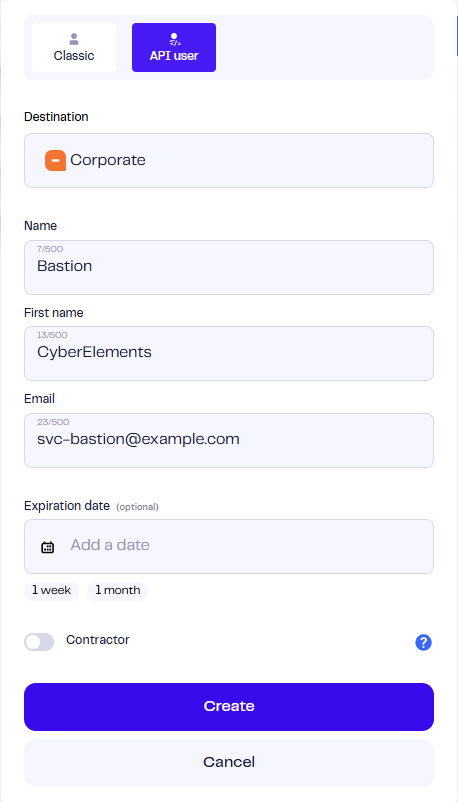
- Select the
API usertab - Leave in
Destinationthe organisation that holds the credentials - Fill in
Name,First nameandEmail: a name that designates CyberElements Bastion makes the account easier to identify - Leave
Expiration dateempty, unless the access of CyberElements Bastion to LockSelf is to end on a given date - Click
Create
LockSelf then displays the Your identification keys window:
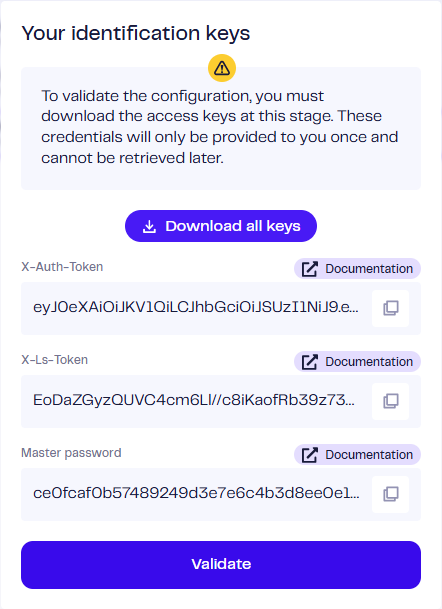
| LockSelf key | CyberElements Bastion field |
|---|---|
X-Auth-Token |
X-Auth-Token |
X-Ls-Token |
X-Ls-Token |
Master password |
Security key |
Keys displayed only once
These keys are provided only when the user is created and cannot be retrieved later. Click
Download all keys and keep the file in a safe place until the keys are entered in
CyberElements Bastion; the Validate button becomes available only after this download.
Sharing categories with the API user
CyberElements Bastion reads only the categories of the shared space (Shared space) to which the
API user has access. If needed, create a category in Shared space to group the credentials
intended for CyberElements Bastion:
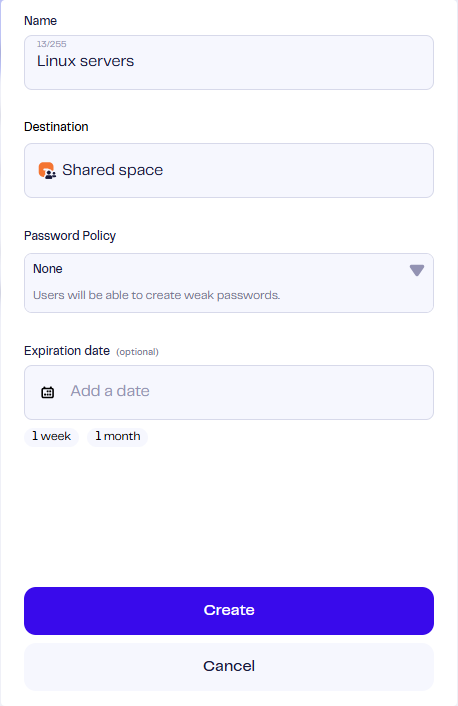
For each category to be made readable:
- In the
Passwordsmenu, select the category - In the right-hand panel,
Accesstab, click theAccessbutton - In
Add a user or a group, search for the API user and select it: it is added to the list of users of the category
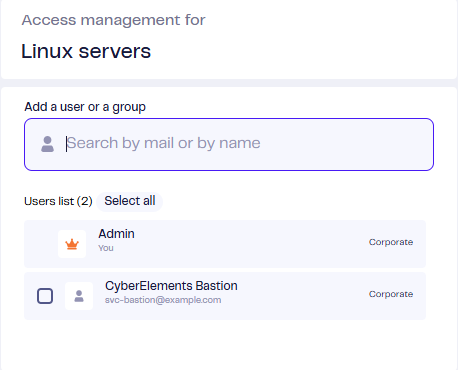
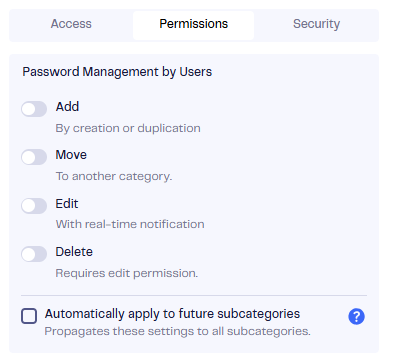
The edit rights of the category are set in the Permissions tab. CyberElements Bastion only reads
LockSelf: leave Add, Move, Edit and Delete disabled.
Only the password (Password) and SSH key (SSH Key) credentials of these categories can be used
by CyberElements Bastion.
Enabling the LockSelf vault
Access the web interface of the Mediation Controller server with the /console URI.
Examples
If access to the Mediation Controller on its web IP address is 10.0.10.10, then the administration console is reached at https://10.0.10.10/console.
If the Mediation Controller is reachable by a DNS name, for example cyberelements-bastion.domain.local, then the administration console is reached at https://cyberelements-bastion.domain.local/console.
Once logged into the administration console, go to the Configurations workspace:

Then click on the General Options tile:

In the Select password vault mode list, choose LockSelf, then save. The console asks for confirmation before applying the change.

Danger
Moving to an external vault detaches the applications: every application in Fixed SSO loses the aliases it designated and reverts to Enabled SSO. The previous mode's aliases are kept but no longer serve any purpose. The detail is in Change of mode.
Entering the LockSelf access
Return to the main workspace and open Vault (LockSelf). As long as no access is configured, the Safe access configuration window opens by itself; afterwards, it opens from the Configuration toolbar button.
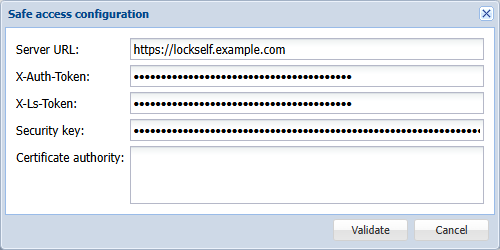
Fill in:
| Field | Value |
|---|---|
| Server URL | Address of the LockSelf instance, in https://. |
| X-Auth-Token | X-Auth-Token of the API user. |
| X-Ls-Token | X-Ls-Token of the API user. |
| Security key | Security key of the API user (64 hexadecimal characters). |
| Certificate authority | Optional. Certificate of the authority that signed the instance certificate: the text between the -----BEGIN CERTIFICATE----- and -----END CERTIFICATE----- lines, both lines included. |
On saving, the console checks the form of the fields, then queries the LockSelf instance. The configuration is saved only if the connection succeeds; otherwise the message gives the reason (token rejected, invalid key, unreachable instance or untrusted certificate, too many attempts).
Fields to enter again
When the window is reopened, only the server URL and the certificate authority are displayed again. The two tokens and the security key have to be entered again at every save.
Using the LockSelf vault
The connection between CyberElements Bastion and LockSelf is read-only: the credentials are used to connect to applications and for password injection following an SSH command. Creating, editing or deleting a credential is done in LockSelf.
The categories shared with the API user are displayed in the tree of the Vault (LockSelf) module; a category whose key it does not hold is greyed.
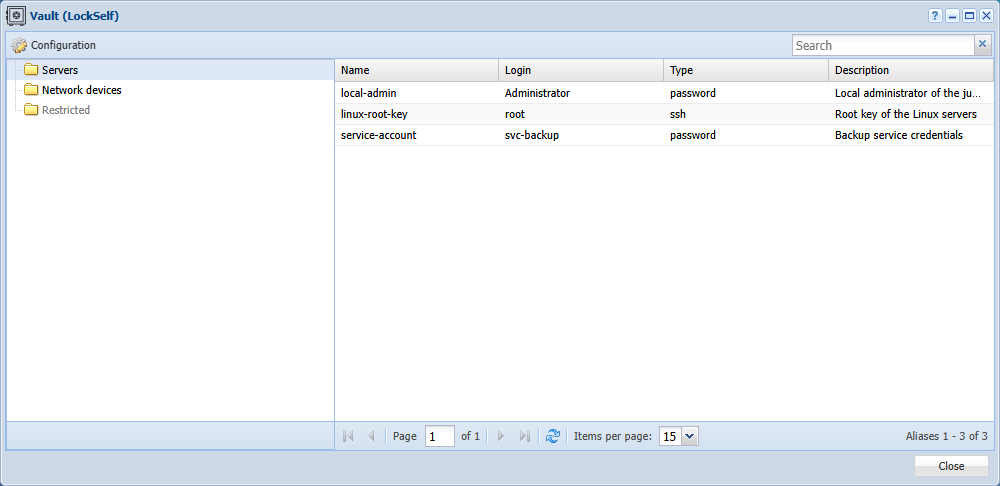
Only LockSelf credentials of the password and SSH types are listed and usable with applications. An SSH credential holding a private key becomes an SSH key alias; the others become SSH password aliases.
Delay before changes are seen
The platform reads LockSelf again at each aliases cache renewal period set in the general options (30 minutes by default): a change made in LockSelf is not visible immediately.
The detailed behaviour of the screen (search, alias synchronisation, limits) is described in LockSelf vault, and its fields in the module reference.