Standard and extended VDI desktops
A VDI desktop is a complete workstation published by Systancia Workplace. This screen manages both its natures, which only have the name in common.
A standard desktop is served by an application server: several users open a session on the same machine. An extended desktop is cloned from a reference machine carried by a Workplace host; it can also be dedicated to one user, and it is then called a static desktop.
Availability
The module only appears when the Workplace association is active and console merging is active too, both set in Workplace association. The desktops managed here are the Workplace ones: a change made on one side shows on the other, even though the two screens may differ slightly.
Workplace documentation
Desktop life cycle, localisations, customisation scripts, clone naming rules: those mechanisms belong to both products, and their reference documentation is the Workplace one. This page describes how to drive them from the Bastion console.
Prerequisites for adding a desktop
The console refuses the addition until three conditions are met, with a specific message for each:
- The VDI service must be enabled on the Workplace side: without it, no desktop of any nature.
- A standard desktop requires at least one declared application server.
- An extended desktop requires at least one virtual machine host, and the reference machine to clone must already be referenced on it.
Refusal messages
None of those three refusals points to the screen to open. The first is fixed in Workplace, the second in the application servers, the third in the virtual machine hosts (Workplace).
Implementation order of an extended desktop
- Declare the host and wait for its referencing to end.
- Prepare the reference machine on that host, and let it be referenced.
- Create the desktop: the form is walked through in several steps (identity, presentation, machine parameters, localisations, scripts, settings, naming, summary).
- Deploy the clones.
- Publish the desktop through a Workplace contract: with no contract the desktop exists but nobody sees it.
Step 5 can be shortened from this screen: the Other actions menu opens the contract form directly, pre-filled with the selected desktop.
Clone commands
Three commands produce or rebuild the clones of a desktop (Clear, Deploy and Update), and they only concern extended, non-static desktops. A standard desktop has no clone; a static desktop has its own, dedicated one.
Clearing a desktop destroys every clone of it. The operation carries on in the background, which the confirmation prompt indicates.
Lock during creation
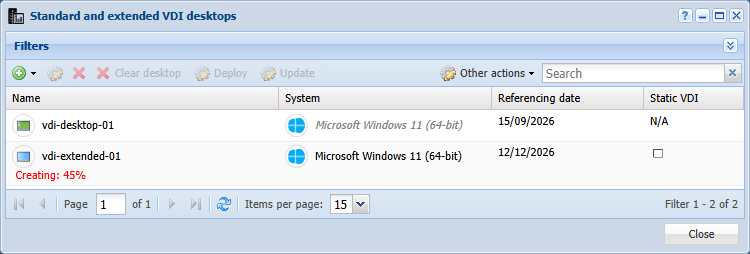
While a clone creation or removal task is running, the desktop cannot be edited, cleared or deleted: the console refuses all three with the same message. Progress is visible in the list, in red, under the name of the desktop.
Desktop deletion
Deletion also destroys the clones of the desktop, and the confirmation recalls it explicitly when it carries any.
Desktops that cannot be deleted
The original desktop of the product (the one that exists before any creation) cannot be deleted, and some of its options are not offered. A desktop whose clones are being created cannot be deleted either, until the task is over.
Limits
- The clone commands apply neither to a standard desktop nor to a static one.
- The clones list and the deployment report are not offered for a standard desktop; the report is not offered for a static one either.
- Every action of the Other actions menu requires a selection.
- The form of a standard desktop is far shorter: no localisation, no script, no naming.
- The nature of a desktop (standard or extended) is chosen on creation and read afterwards; the two forms are not interchangeable.
The field-by-field detail is in the module reference.