Installation of the Edge Gateway Server
Security hardening of the appliance
The appliance applies part of the recommendations of the advanced security hardening guide when it is built; the state of each recommendation, and what remains to be done after deployment, is given in Security hardening of the Edge Gateway appliances.
Initial system settings
When you start the Standalone Edge Gateway appliance for the first time, an initial machine configuration wizard appears. This wizard allows you to initialise the system-specific configuration as well as those specific to the use of CyberElements Bastion.
Systems settings
The wizard begins by asking you to select a language: 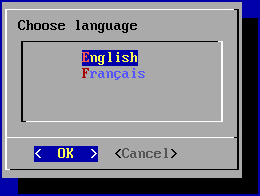
Information
The language you choose will affect both the system display language and the keyboard layout. In English, the keyboard will have a QWERTY layout, while in French it will be AZERTY.
The wizard then asks you to add a new password for the root system account (make sure it meets the required complexity): 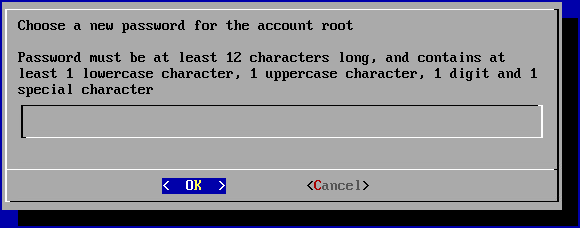
Next, you need to change the systancia system user account password (make sure it meets the required complexity): 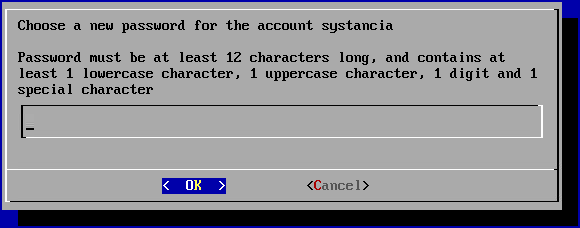
Finally, you need to enter the machine name: 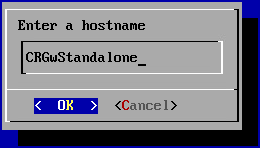
Network settings
Once the system settings have been applied, the wizard switches to the machine's network settings.
The first panel asks you to choose between a static configuration and a dynamic configuration via DHCP: 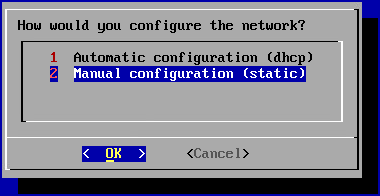
Recommendation
It is recommended that you use a static configuration for the machine's network settings, particularly for the direct access feature.
DHCP can also be used if the IP address is set at the DHCP server level.
If the static configuration is chosen, the wizard will ask for the following network settings: 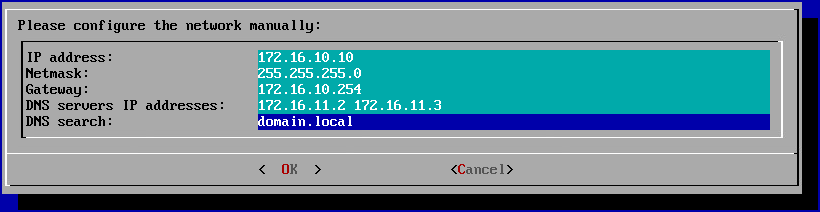
Tip
Several DNS servers can be entered (3 maximum) by separating them with spaces. Similarly, several DNS suffixes can be added by separating them with a space.
Settings specific to CyberElements Bastion operation
Once the network settings have been applied, the Edge Gateway and HTML5 Gateway instances still need to be connected to the Mediation Controller.
Proxy
Before pairing, the wizard asks for the URL of the proxy through which the Edge Gateway reaches the
Mediation Controller. Leave the field empty if no proxy is needed. The accepted schemes are http,
https, socks4 and socks5, for example:
1 2 3 4 | |
The proxy entered, if any, is saved in /etc/profile.d/proxy.sh (HTTP_PROXY and HTTPS_PROXY variables), then
used by pairing, which writes it into the Edge Gateway configuration for its connections to the
Mediation Controller. For a manual pairing, see the -x and --noproxy options of
the pairing command.
Connecting the main Edge Gateway instance
At this point, the initial configuration wizard should have reached the stage where it requests information about access to the Mediation Controller server: 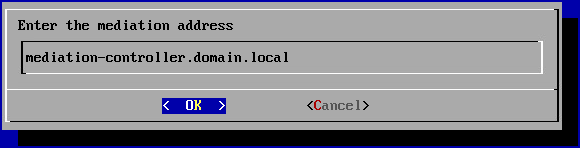
You must enter the DNS name for accessing the Mediation Controller server's web interface.
The IP address can also be used, but this will generate a certificate validity alert.
Web certificate validity
The Edge Gateway checks the web certificate that the Mediation Controller server will present to it. By default, only certificates issued by public certification authorities considered trustworthy will not generate errors during the check (unless the certificate does not cover the specified DNS name).
Consequently, if access to the Mediation Controller server is via an IP address or if the web certificate is issued by a private/internal certification authority, the pairing mechanism will not work.
To remove the control, and only if it is certain that no intermediary is capturing the network flow (MITM attack), the web certificate control can be disabled.
To do this, exit the initial installation wizard (the configurations already entered are already applied):
press the Esc key, answer Yes to Cancel gateway pairing?, then validate the messages that follow; the
session is closed. Log in again (see below) and execute the following commands (the first disables the check
and the second takes us back to the configuration wizard, directly at the Mediation Controller address):
1 2 | |
After entering the Mediation Controller address, the wizard will ask you to enter the Edge Gateway pairing token (obtained by generating a pairing token): 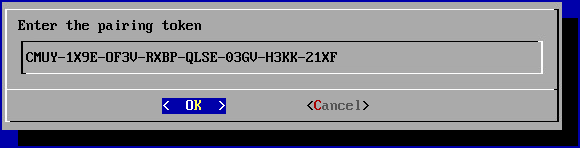
If all the information provided is correct, the Edge Gateway configures itself and the wizard displays Gateway is now paired to the mediation: validate with Finish to close it.
Connecting as root
Once the initial configuration wizard has finished, the root account is not accepted directly, neither in
console mode nor over SSH (PermitRootLogin no). Log in with the systancia account, then switch to the root
account with the following command and the root password set in the wizard:
1 | |
Connecting the HTML5 Gateway instance
The HTML5 Gateway instance is installed and enabled on the appliance; it starts once paired.
To configure the HTML5 Gateway instance on the server, follow the information provided in the following documentation: Connecting by pairing the HTML5 Gateway instance
Configuring an NTP time server
It is recommended to set up a time server to keep the system clock up to date. The necessary steps are described on the NTP configuration page.