Adding a new organisation
An organisation, or tenant, is a logical isolation of all settings, archives, and possible accesses (users or Edge Gateway). All new installations require the creation of at least one organisation; adding other organisations may be necessary depending on the intended use of the platform.
All newly declared organisations need to create a database (DB). There are three possible scenarios for accessing the DB server:
- Use of the local PostgreSQL on the Mediation Controller server (only valid for standalone architecture).
- Use of a database accessible directly from the Mediation Controller server.
- Use of a database accessible from a tunnel initiated by one or more Edge Gateways, generally used with cluster architecture.
Prerequisites
You will need the database connection information to declare it in CyberElements Bastion. To retrieve them, connect to the Mediation Controller server via SSH and use the following command, executed as root, to display the contents of the /etc/ipdiva/care/databasesettings.ini file:
1 | |
Inside this file, retrieve the username and password in the [database] section.
Example of databasesettings.ini file
1 2 3 4 5 6 7 | |
Access the Mediation Controller server's web interface with the URI /system.
Examples
If access to the Mediation Controller on its web IP address is 10.0.10.10, then access to the system interface will use the URL: https://10.0.10.10/system.
If access to the Mediation Controller is possible with a DNS name, for example cyberelements-bastion.domain.local, then access to the system interface will use the URL: https://cyberelements-bastion.domain.local/system.
Important !
For any changes to the password, licence, or certificates (SSL Router, Watchdog, and CyberElements Bastion client), connect to the actual IP address for clusters (RIP_MC_WEB_MASTER or RIP_MC_WEB_SLAVE).
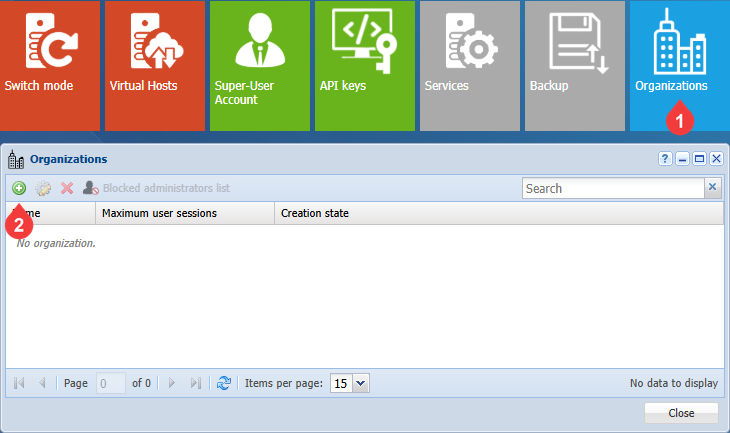
Add an organisation by clicking on the Organizations tile and then clicking on the add icon:
An Add Organization window will open:
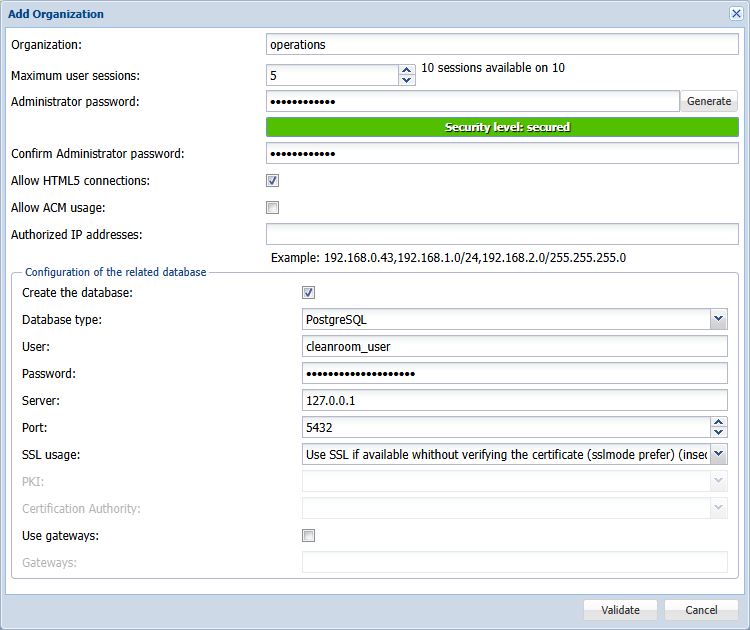
Fill in the following fields:
Organization: Name of the organisation, made only of letters, digits,-and_; it is recorded in lowercase.Maximum user sessions: Indicate the number of licences allocated to this organisation.Administrator passwordandConfirm Administrator password: Generate the organisation administrator password with theGeneratebutton, which fills in both fields and displays the password (note it down), or specify a new password that is sufficiently secure.Allow HTML5 connections: Indicate whether the organisation has HTML5 Gateway.Allow ACM usage: Indicate whether the organisation will be able to use the ACM feature (retrieving the Vault ID via scripts). This option is only displayed if the licence includes ACM.Authorized IP addresses: Specify the IP addresses that are authorised to connect to the organisation as an administrator.Create the database: Check the box.Database type: Select the PostgreSQL database type.User: Enter the username used to log in to the database (obtained previously).Password: Enter the password for the database login account (retrieved previously).Server: Enter the IP address127.0.0.1.Port: Specify the database listening port5432.SSL Usage: Indicate thatUse SSL if available without verifying the certificate; for local connections to the server, this does not pose a security risk.Use gateways: Leave the option unchecked.
Information
You will need the database connection information to declare it in CyberElements Bastion.
The user account must have the rights to create a new database (unless reusing an old database).
Access the Mediation Controller server's web interface with the URI /system.
Examples
If access to the Mediation Controller on its web IP address is 10.0.10.10, then access to the system interface will use the URL: https://10.0.10.10/system.
If access to the Mediation Controller is possible with a DNS name, for example cyberelements-bastion.domain.local, then access to the system interface will use the URL: https://cyberelements-bastion.domain.local/system.
Important !
For any changes to the password, licence, or certificates (SSL Router, Watchdog, and CyberElements Bastion client), connect to the actual IP address for clusters (RIP_MC_WEB_MASTER or RIP_MC_WEB_SLAVE).
Add an organisation by clicking on the “Organizations” tile, then click on the add icon:
An Add Organization window will open:
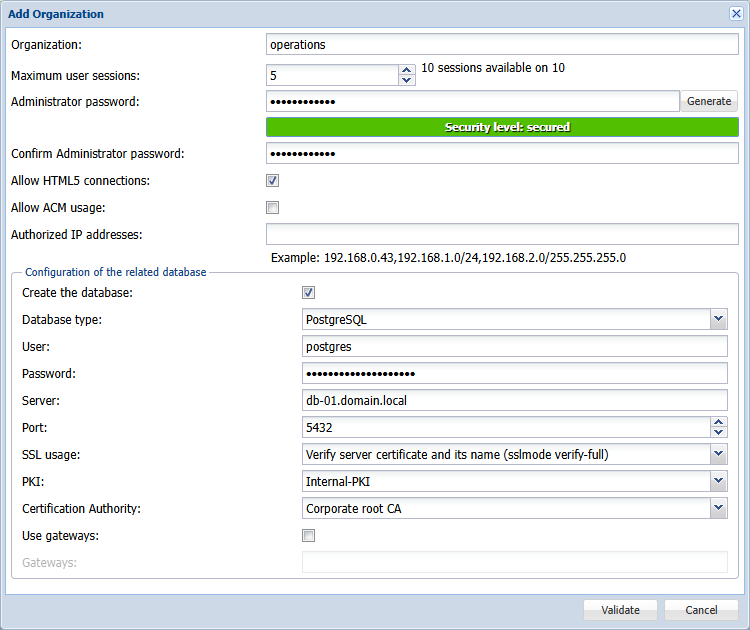
Fill in the following fields:
Organization: Name of the organisation, made only of letters, digits,-and_; it is recorded in lowercase.Maximum user sessions: Indicate the number of licences allocated to this organisation.Administrator passwordandConfirm Administrator password: Generate the organisation administrator password with theGeneratebutton, which fills in both fields and displays the password (note it down), or specify a new password that is sufficiently secure.Allow HTML5 connections: Indicate whether the organisation has HTML5 Gateway.Allow ACM usage: Indicate whether the organisation will be able to use the ACM feature (retrieving the Vault ID via scripts). This option is only displayed if the licence includes ACM.Authorized IP addresses: Specify the IP addresses that are authorised to connect to the organisation as an administrator.Create the database: Check the box if the database does not already exist on the database server, with the database named after the organisation.Database type: Select the database type between PostgreSQL and Microsoft SQL Server.User: Enter the username used to log in to the database.Password: Enter the password for the database login account.Server: Specify the IP address or DNS name (must be resolvable by the Mediation Controller) of the database server.Port: Specify the database listening port (PostgreSQL usually listens on TCP port 5432, while Microsoft SQL Server listens on TCP port 1433). A named instance of Microsoft SQL Server listens by default on a dynamic port: give it a fixed port, with the TCP/IP protocol enabled, in SQL Server Configuration Manager.SSL Usage(if using PostgreSQL): Specify whether the connection to the database should be made using TLS. For maximum security, use a TLS connection with certificate verification (requires PostgreSQL to be configured to work with TLS).PKI(if using PostgreSQL): Specify the PKI to be used for database certificate verification. If it does not exist, follow the configuration information for a trusted certification authority for the Mediation Controller.Certification Authority(if using PostgreSQL): Specify the certification authority used to create the database certificate.Use gateways: Leave the option unchecked.
Information
You will need the database connection information to declare it in CyberElements Bastion.
The user account must have the rights to create a new database (unless reusing an old database).
The Mediation Controller reaches the database through Edge Gateways of cleanroom_infra, the virtual organisation reserved for the infrastructure of the platform. Each Edge Gateway of the tunnel is dedicated to one organisation: the name of its certificate (CN) is <gateway>-<organization>@cleanroom_infra, where <gateway> is the name entered in the Gateways field below and <organization> the name of the organisation.
Before creating the organisation, prepare each Edge Gateway as described in Main database through Edge Gateways (steps 2 to 4), with <gateway>-<organization> as the name of the Edge Gateway:
- certificate and key in a PKCS#12 file, with the CN
<gateway>-<organization>@cleanroom_infra; -
pairing token generated on the Mediation Controller, as
root:1/usr/local/ipdiva/bin/clr_gen_defaultgateway_token.py <gateway>-<organization> <file.p12> [--p12-password <password>] -
pairing of the Edge Gateway with this token and the
--cleanroom-infraoption.
In a cluster, each Edge Gateway must be connected to both Mediation Controller servers, through one instance per server:
- generate the pairing token on each Mediation Controller server, with the same name and the same certificate;
- pair one instance with each server, through the real web address of that server, with a distinct instance name (
-n) and without the recording service certificate (--no-care); add-kwhen the web certificate of the server does not bear that address.
Example
For the Edge Gateway dbgw1 of the organisation lme-tunnel, with the token generated on the MASTER server, then the one generated on the SLAVE server:
1 2 | |
Access the Mediation Controller server's web interface with the URI /system.
Examples
If access to the Mediation Controller on its web IP address is 10.0.10.10, then access to the system interface will use the URL: https://10.0.10.10/system.
If access to the Mediation Controller is possible with a DNS name, for example cyberelements-bastion.domain.local, then access to the system interface will use the URL: https://cyberelements-bastion.domain.local/system.
Important !
For any changes to the password, licence, or certificates (SSL Router, Watchdog, and CyberElements Bastion client), connect to the actual IP address for clusters (RIP_MC_WEB_MASTER or RIP_MC_WEB_SLAVE).
Add an organisation by clicking on the “Organizations” tile, then click on the add icon:
An Add Organization window will open:
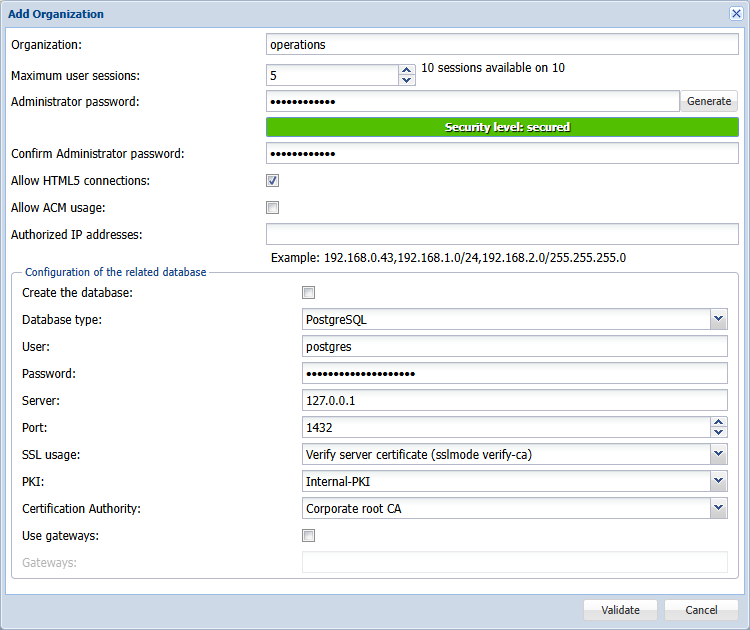
Fill in the following fields:
Organization: Name of the organisation, made only of letters, digits,-and_; it is recorded in lowercase.Maximum user sessions: Indicate the number of licences allocated to this organisation.Administrator passwordandConfirm Administrator password: Generate the organisation administrator password with theGeneratebutton, which fills in both fields and displays the password (note it down), or specify a new password that is sufficiently secure.Allow HTML5 connections: Indicate whether the organisation has HTML5 Gateway.Allow ACM usage: Indicate whether the organisation will be able to use the ACM feature (retrieving the Vault ID via scripts). This option is only displayed if the licence includes ACM.Authorized IP addresses: Specify the IP addresses that are authorised to connect to the organisation as an administrator.Create the database: Check the box if the database does not already exist on the database server, with the database named after the organisation.Database type: Select the database type between PostgreSQL and Microsoft SQL Server.User: Enter the username used to log in to the database.Password: Enter the password for the database login account.Server: Specify the real address of the database server (IP address or DNS name), as reached from the Edge Gateways. The database server sees the connections arrive from the Edge Gateways of the tunnel, not from the Mediation Controllers: it must accept them (firewall and, for PostgreSQL, one line per Edge Gateway inpg_hba.conf).Port: Specify the real listening port of the database instance.SSL Usage(if using PostgreSQL): Indicate whether the connection to the database should be made using TLS, and the level of verification of its certificate. The certificate is checked against the address entered inServer, not against the address of the tunnel.PKI(if using PostgreSQL): Specify the PKI to be used for database certificate verification. If it does not exist, follow the configuration information for a trusted certification authority for the Mediation Controller.Certification Authority(if using PostgreSQL): Specify the certification authority used to create the database certificate.Use gateways: Check the option.Gateways: Enter the names of the Edge Gateways of the tunnel, separated by commas, without the name of the organisation (for exampledbgateway,dbgateway2). The window then displays the certificate names that the Edge Gateways must bear (dbgateway-<organization>@cleanroom_infra…).
Click on Validate. The organisation remains in the waiting state until all the Edge Gateways entered are connected (Waiting for the following gateways to connect:): connect them within 15 minutes, otherwise the creation fails with the list of the Edge Gateways that did not connect. To cancel the creation, delete the organisation. Once the Edge Gateways are connected, the database is created (if requested) and the organisation is initialised; each later connection to the database opens its own tunnel through one of the connected Edge Gateways (Organizations).