Installation of the Edge Gateway Server
Security hardening of the appliance
The appliance applies part of the recommendations of the advanced security hardening guide when it is built; the state of each recommendation, and what remains to be done after deployment, is given in Security hardening of the Edge Gateway appliances.
Values used on this page
The following values are used in several commands and configuration files of this page. Enter them here: the commands displayed on this page are updated as you type.
A value used by a single command is entered in a table placed just before that command.
| Value | Variable | Definition |
|---|---|---|
GW_CERT_FILE |
Name of the certificate file of the Edge Gateway instances. | |
RIP_MC_SSL_MASTER |
Secondary real IP address of the MASTER Mediation Controller: the SSL Router is reached through it. |
|
PORT_MC_SSL_MASTER |
Listening port of the SSL Router of the MASTER Mediation Controller (usually 443). |
|
GW_CERT_PASSWORD |
Password of the certificate of the Edge Gateway instances. | |
RIP_MC_SSL_SLAVE |
Secondary real IP address of the SLAVE Mediation Controller: the SSL Router is reached through it. |
|
PORT_MC_SSL_SLAVE |
Listening port of the SSL Router of the SLAVE Mediation Controller (usually 443). |
|
CARE_CERT_FILE |
Name of the certificate file of the recording service. | |
HTML5_CERT_FILE |
Name of the certificate file of the HTML5 Gateway. | |
HTML5_CERT_PASSWORD |
Password of the certificate of the HTML5 Gateway. | |
URL_HTML5 |
Content of the URL field of the HTML5 Gateway declared in the administration console (for example HTML5-2). |
|
GW_NAME |
Name of the Edge Gateway through which the Mediation Controller reaches the HTML5 Gateway; the | character at the end of the line must be kept. |
|
ORGANIZATION_NAME |
Name of the organisation to which the Edge Gateways connect. |
Initial system settings
When the Edge Gateway Cluster appliance is started for the first time, the Gateway setup initial configuration wizard appears (the machine name is pre-filled with CRGwCluster). This wizard allows you to initialise the system-specific configuration as well as those specific to the use of CyberElements Bastion.
Systems settings
The wizard begins by asking you to select a language: 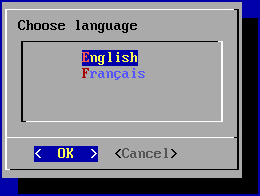
Information
The language you choose will affect both the system display language and the keyboard layout. In English, the keyboard will have a QWERTY layout, while in French it will be AZERTY.
The wizard then asks you to add a new password for the root system account (make sure it meets the required complexity): 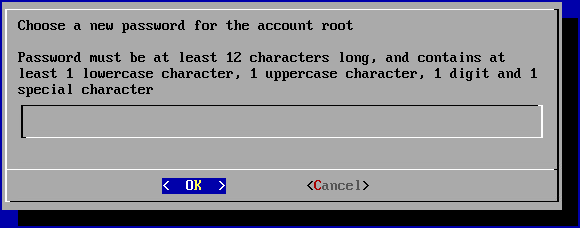
Next, you need to change the systancia system user account password (make sure it meets the required complexity): 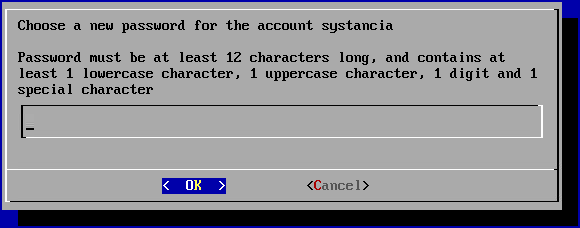
Finally, you need to enter the machine name: 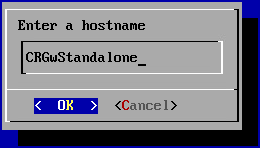
Network settings
Once the system settings have been applied, the wizard switches to the machine's network settings.
The first panel asks you to choose between a static configuration and a dynamic configuration via DHCP: 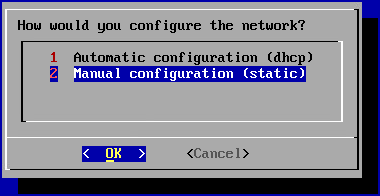
Recommendation
It is recommended that you use a static configuration for the machine's network settings, particularly for the direct access feature.
DHCP can also be used if the IP address is set at the DHCP server level.
If the static configuration is chosen, the wizard will ask for the following network settings: 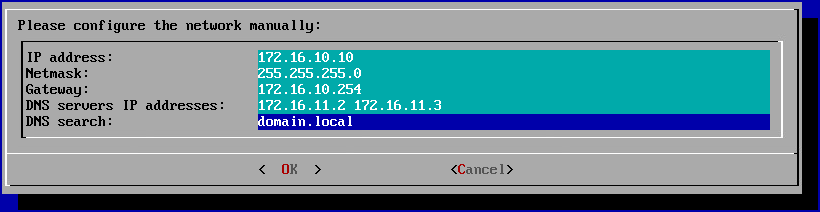
Tip
Several DNS servers can be entered (3 maximum) by separating them with spaces. Similarly, several DNS suffixes can be added by separating them with a space.
Proxy
After the network settings, the wizard asks for the URL of the proxy through which the Edge Gateway reaches the Mediation Controllers; leave the field empty if no proxy is needed: 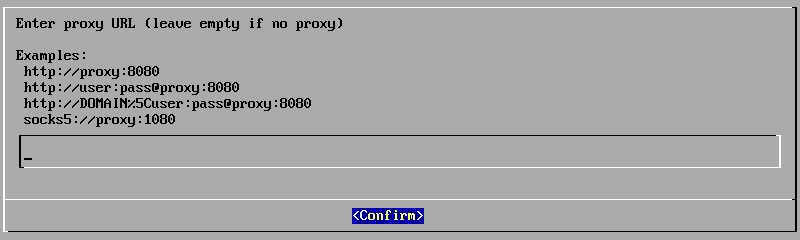
The accepted forms are the same as for the Standalone Edge Gateway appliance.
Leaving the pairing wizard
The wizard then offers the pairing mechanism of the Edge Gateway (Enter the mediation address). It is not used on this page: the Edge Gateway instances are connected to the two Mediation Controllers through their configuration files. Leave the wizard with the Cancel button (two presses of the Tab key move from the input field to Cancel): 
Confirm with Yes: 
Then validate the two following messages: 

The wizard no longer appears at the next connections, and the automatic connection as root is disabled.
Connecting as root
Once the initial configuration wizard has finished, the root account is not accepted directly, neither in
console mode nor over SSH (PermitRootLogin no). Log in with the systancia account, then switch to the root
account with the following command and the root password set in the wizard:
1 | |
Settings specific to CyberElements Bastion operation
Once the network settings have been applied, you still need to connect the Edge Gateway and HTML5 Gateway instances to the Mediation Controllers.
To do this, the first Edge Gateway and HTML5 Gateway instances will connect to the MASTER Mediation Controller, while the second instances will connect to the SLAVE Mediation Controller.
Attention!
If the Edge Gateway installation is not located within the LAN and therefore the addresses RIP_MC_SSL_MASTER and RIP_MC_SSL_SLAVE are not accessible (even with NAT).
In that case, you will only need to configure the first instance of Edge Gateway and HTML5 Gateway, which will be set up to connect to VIP_MC_SSL.
In this context, the Standalone virtual appliance can be used. The Cluster virtual appliance is preconfigured with two instances, whereas its Standalone counterpart is preconfigured with a single instance.
Before continuing with the following instructions, make sure you have the following items:
- Certificate for the Edge Gateway and HTML5 Gateway instances to be connected
- Certificate for the recording service
- An SSH client (on Windows, you can use PuTTY)
- An SCP client (on Windows, the WinSCP or FileZilla tools can be used)
Transfer the certificates to the /tmp/ directory of the machine.
Connecting Edge Gateways
Copy the certificate file from the Edge Gateway to the /etc/ipdiva/gateway/ssl/ and /etc/ipdiva/gateway-slave/ssl/ directories. You can do this by running commands similar to the following as root:
1 2 | |
Configure the Edge Gateway instances to allow them to connect to the Mediation Controllers.
The configurations differ depending on the Mediation Controller to be contacted. Perform both settings:
Edit the file /etc/ipdiva/gateway/gateway.xml and fill it in using the following information (several sections have been omitted and are indicated by […]):
1 2 3 4 5 6 7 8 9 10 | |
Example
Taking into account the following information:
RIP_MC_SSL_MASTERequals:10.0.10.11- SSL Router listening port:
443 - Certificate file name:
edge-gateway.p12 - Certificate password:
Str0ngP@ssw0rd
The /etc/ipdiva/gateway/gateway.xml file would be configured as follows:
1 2 3 4 5 6 7 8 9 10 | |
Complete file
1 2 3 4 5 6 7 8 9 10 11 12 13 14 15 16 17 18 19 20 21 22 23 24 25 26 27 28 29 30 31 32 33 34 35 36 37 38 39 40 41 42 43 44 45 46 47 48 49 50 51 52 53 54 55 56 57 58 59 60 61 62 63 64 65 66 67 68 69 70 71 72 73 74 75 76 77 78 79 80 81 | |
Finally, start the Edge Gateway instance to load the new settings and connect it to the MASTER Mediation Controller:
1 | |
Edit the /etc/ipdiva/gateway-slave/gateway.xml file and complete it using the following information (several sections have been omitted and are indicated by […]):
| Value | Variable | Definition |
|---|---|---|
GW_SLAVE_RPC_PORT |
Free TCP port of the machine for the RPC interface of the Edge Gateway instance connected to the SLAVE Mediation Controller (9081 is commonly used). |
1 2 3 4 5 6 7 8 9 10 11 12 | |
Example
Taking into account the following information:
RIP_MC_SSL_SLAVEis equal to:10.0.10.13- SSL Router listening port:
443 - Certificate file name:
edge-gateway.p12 - Certificate password:
Str0ngP@ssw0rd - Available RPC port:
9081
The /etc/ipdiva/gateway-slave/gateway.xml file would be configured as follows:
1 2 3 4 5 6 7 8 9 10 11 12 | |
Complete file
1 2 3 4 5 6 7 8 9 10 11 12 13 14 15 16 17 18 19 20 21 22 23 24 25 26 27 28 29 30 31 32 33 34 35 36 37 38 39 40 41 42 43 44 45 46 47 48 49 50 51 52 53 54 55 56 57 58 59 60 61 62 63 64 65 66 67 68 69 70 71 72 73 74 75 76 77 78 79 80 81 | |
Finally, start the Edge Gateway instance to load the new settings and connect it to the SLAVE Mediation Controller:
1 | |
Mediation Controller behind NAT
When the log of the Edge Gateway (/var/log/IPdivaGateway.log) shows the peer certificate is only valid for …, the address
entered in <server> (typically an address translated by NAT) is not a name of the certificate of the
Mediation Controller: declare the accepted names in cert-peernames (<ssl> section of gateway.xml).
Values already set on the appliance
On the appliance, the rpc-listen element of /etc/ipdiva/gateway-slave/gateway.xml is already set to
127.0.0.1:9081: only the address of the server, the certificate and its password remain to be entered.
Configuration of the recording service
Move the certificate for the recording service to the /etc/ipdiva/careserver/ directory with a command similar to this:
1 | |
Next, configure the service by modifying the following file: /etc/ipdiva/careserver/careserver.xml. The configuration of the file should be something like this (the following section omits many lines in the file marked with […]):
| Value | Variable | Definition |
|---|---|---|
CARE_CERT_PASSWORD |
Password of the certificate of the recording service. |
1 2 3 4 5 6 7 8 9 10 11 12 13 14 15 | |
Make the following changes:
- Change the listening IP address of the recording service to
0.0.0.0(listens on all available IP addresses) - Add the line
<element>http://127.0.0.1:9081</element>
Example
Taking into account the following information:
- Certificate file name:
fqdn.edge-gateway.local.p12 - Certificate password:
Str0ngP@ssw0rd
The file /etc/ipdiva/careserver/careserver.xml would be configured as follows:
1 2 3 4 5 6 7 8 9 10 11 12 13 14 15 | |
Complete file
1 2 3 4 5 6 7 8 9 10 11 12 13 14 15 16 17 18 19 20 21 22 23 24 25 26 27 28 29 30 31 | |
Validate the new settings by restarting the recording service:
1 | |
Values already set on the appliance
On the appliance, the listen element of careserver.xml is already set to 0.0.0.0:8443 and the
<element>http://127.0.0.1:9081</element> line is already present: only the certificate and its password
remain to be entered.
Connecting HTML5 Gateway instances
The two HTML5 Gateway instances (html5gateway and html5gateway-slave) are installed and enabled on the appliance; they start once configured.
Copy the certificate file from the HTML5 Gateway to the /etc/ipdiva/html5gateway/ssl/ and /etc/ipdiva/html5gateway-slave/ssl/ directories. You can do this by running commands similar to the following as root:
1 2 | |
Configure the HTML5 Gateway instances to allow them to connect to the Mediation Controllers.
The configurations differ depending on the Mediation Controller to be contacted. Perform both settings:
Edit the /etc/ipdiva/html5gateway/html5gateway.xml file and complete it using the following information (several sections have been omitted and are indicated by […]):
1 2 3 4 5 6 7 8 9 10 | |
Example
Taking into account the following information:
RIP_MC_SSL_MASTERequals:10.0.10.11- SSL Router listening port:
443 - Certificate file name:
html5-gateway.p12 - Certificate password:
Str0ngP@ssw0rd
The /etc/ipdiva/html5gateway/html5gateway.xml file would be configured as follows:
1 2 3 4 5 6 7 8 9 10 | |
Complete file
1 2 3 4 5 6 7 8 9 10 11 12 13 14 15 16 17 18 19 20 21 22 23 24 25 26 27 28 29 30 31 32 33 34 35 | |
Finally, restart the HTML5 Gateway instance to load the new settings and connect it to the MASTER Mediation Controller:
1 | |
Edit the /etc/ipdiva/html5gateway-slave/html5gateway.xml file and complete it using the following information (several sections have been omitted and are indicated by […]):
| Value | Variable | Definition |
|---|---|---|
HTML5_SLAVE_RPC_PORT |
Free TCP port of the machine for the RPC interface of the HTML5 Gateway instance connected to the SLAVE Mediation Controller (9089 is commonly used). |
1 2 3 4 5 6 7 8 9 10 11 12 | |
Example
Taking into account the following information:
RIP_MC_SSL_SLAVEis equal to:10.0.10.13- SSL Router listening port:
443 - Certificate file name:
html5-gateway.p12 - Certificate password:
Str0ngP@ssw0rd - Available RPC port:
9089
The /etc/ipdiva/html5gateway-slave/html5gateway.xml file would be configured as follows:
1 2 3 4 5 6 7 8 9 10 11 12 | |
Complete file
1 2 3 4 5 6 7 8 9 10 11 12 13 14 15 16 17 18 19 20 21 22 23 24 25 26 27 28 29 30 31 32 33 34 35 | |
Finally, restart the HTML5 Gateway instance to load the new settings and connect it to the SLAVE Mediation Controller:
1 | |
Configurations prior to connecting HTML5 Gateways
The wizard of the Mediation Controller appliances has already configured, on both servers, the access to the first HTML5 Gateway: the /HTML5/ URL, which leads to the Edge Gateway named in the wizard (Gateway name). Declare this HTML5 Gateway in the administration console with the URL HTML5.
Each additional HTML5 Gateway, for example the one of a second Edge Gateway, requires its own section, with its own URL (HTML5-2, HTML5-3, …), added on both Mediation Controller servers, next to the section created by the wizard, as indicated below.
In order for HTML5 applications to work, additional settings must be configured on the Mediation Controller servers. Log in to the MASTER and SLAVE Mediation Controller servers as root.
Create or edit the /etc/ipdiva/httpd/commonParameters.extra.conf file to add a section equivalent to the following for the HTML5 Gateway:
1 2 3 4 5 6 7 8 9 10 11 12 13 14 15 16 17 18 19 20 21 | |
Example
For a platform with the following settings:
- Organisation name:
my-organization-name - Declaration of the first HTML5 Gateway in the administration console:
- Name:
html5-gateway-1 - URL:
HTML5-1 - Protocol:
WebSocket
- Name:
- Declaration of the second HTML5 Gateway in the administration console:
- Name:
html5-gateway-2 - URL:
HTML5-2 - Protocol:
WebSocket
- Name:
- An Edge Gateway server on the first HTML5 Gateway has:
- An Edge Gateway service named
edge-gateway-1 - An HTML5 Gateway service named
html5-gateway-1
- An Edge Gateway service named
- An Edge Gateway server on the second HTML5 Gateway has:
- An Edge Gateway service named
edge-gateway-2 - An HTML5 Gateway service named
html5-gateway-2
- An Edge Gateway service named
The configuration file /etc/ipdiva/httpd/commonParameters.extra.conf created will be set up as follows:
1 2 3 4 5 6 7 8 9 10 11 12 13 14 15 16 17 18 19 20 21 22 23 24 25 26 27 28 29 30 31 32 33 34 35 36 37 38 39 40 41 42 43 | |
Before applying the new settings, you must check that the new configuration does not cause any blocking errors for the Apache2 web server.
To do this, run the following command:
1 | |
If the response is Syntax OK then the changes can be applied with the command below. Otherwise, check your configuration in the /etc/ipdiva/httpd/commonParameters.extra.conf file.
1 | |
Configuring an NTP time server
It is recommended to set up a time server to keep the system clock up to date. The necessary steps are described on the NTP configuration page.