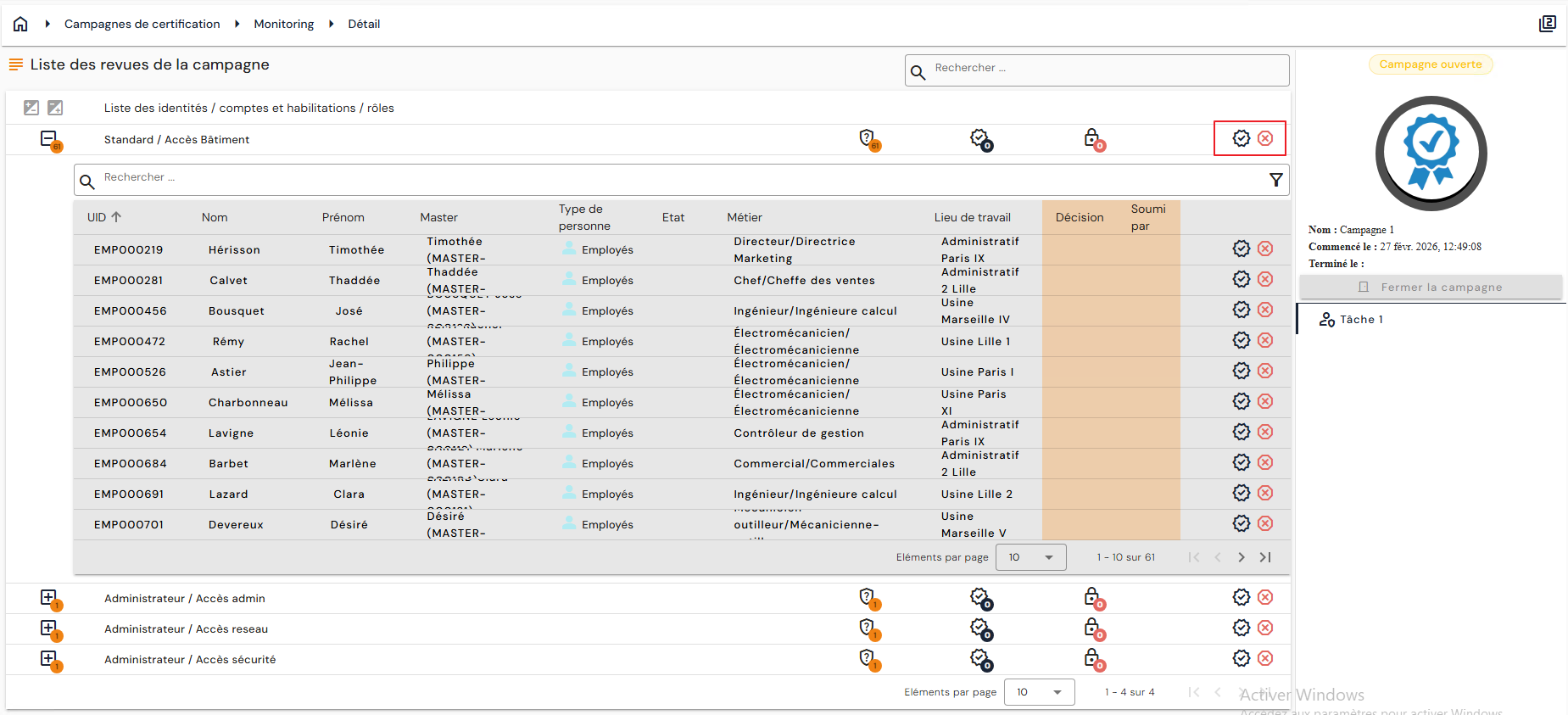
Processing certification campaigns
Certifiers find the campaigns they must process in the “Certification campaigns/Monitoring” menu.
This menu has three tabs: “Scheduled campaigns”, “Open campaigns” and “Completed campaigns”. The open campaigns tab shows, for each campaign, its start date and its progression — the number of reviews processed out of the total number. The view icon at the end of the row opens the campaign.
In a certification campaign, certifiers find the various tasks of the campaign in the right-hand menu. This panel also shows the status of the campaign, its name, its start and end dates, and carries the Close the campaign button, which is active as long as the campaign is open.
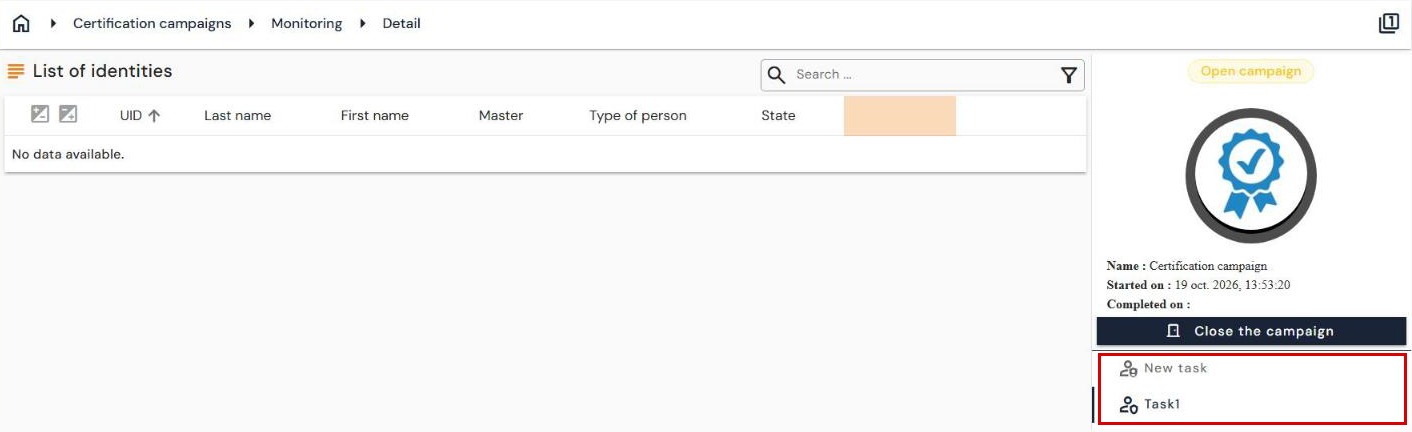
The certifier can display the list of Identity / Authorization or Role pairs, or Account / Authorization or Role pairs, in 2 different formats:
First format
The first format lists the objects (identities or accounts) at the first level, then the authorizations or roles to be certified at the second level:
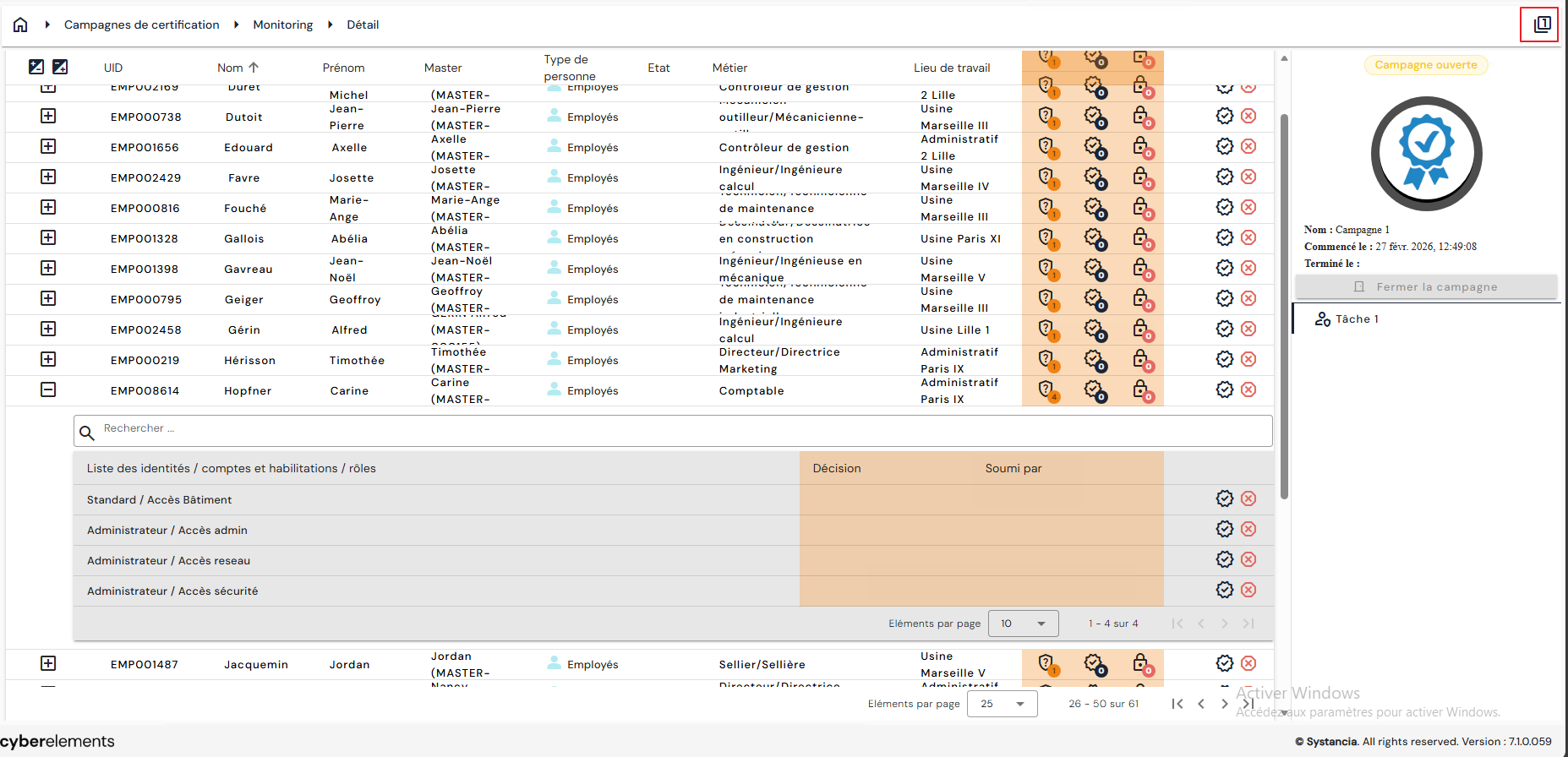
With this view, for each person or each account, it is possible either to certify or reject all the authorizations or roles of the object to be certified, or to certify or reject them individually.
Second format
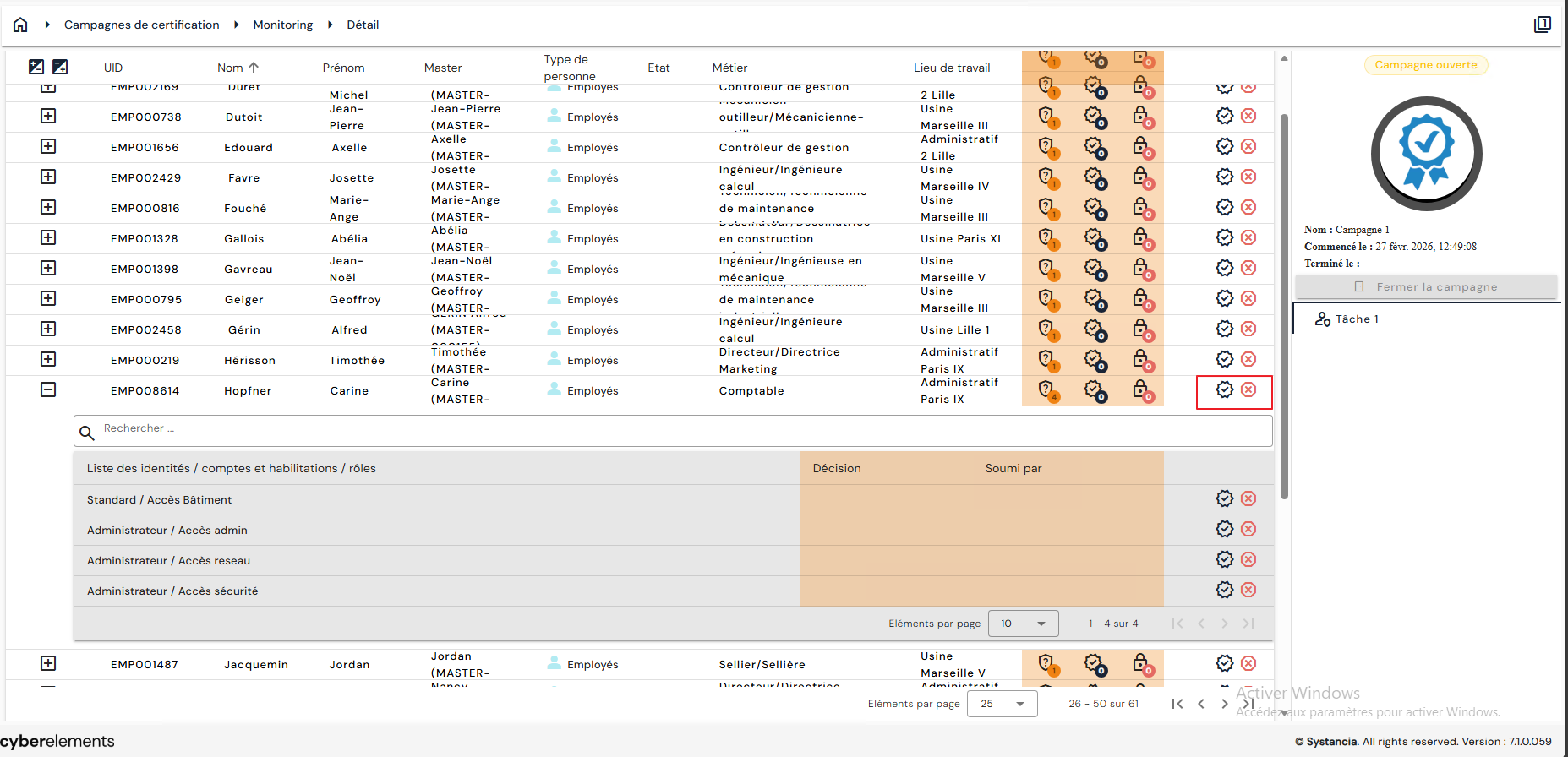
The second format (click on the  button at the top right to switch from one format to the other) displays the authorizations or roles to be certified at the first level, then the list of the identities or accounts concerned at the second level.
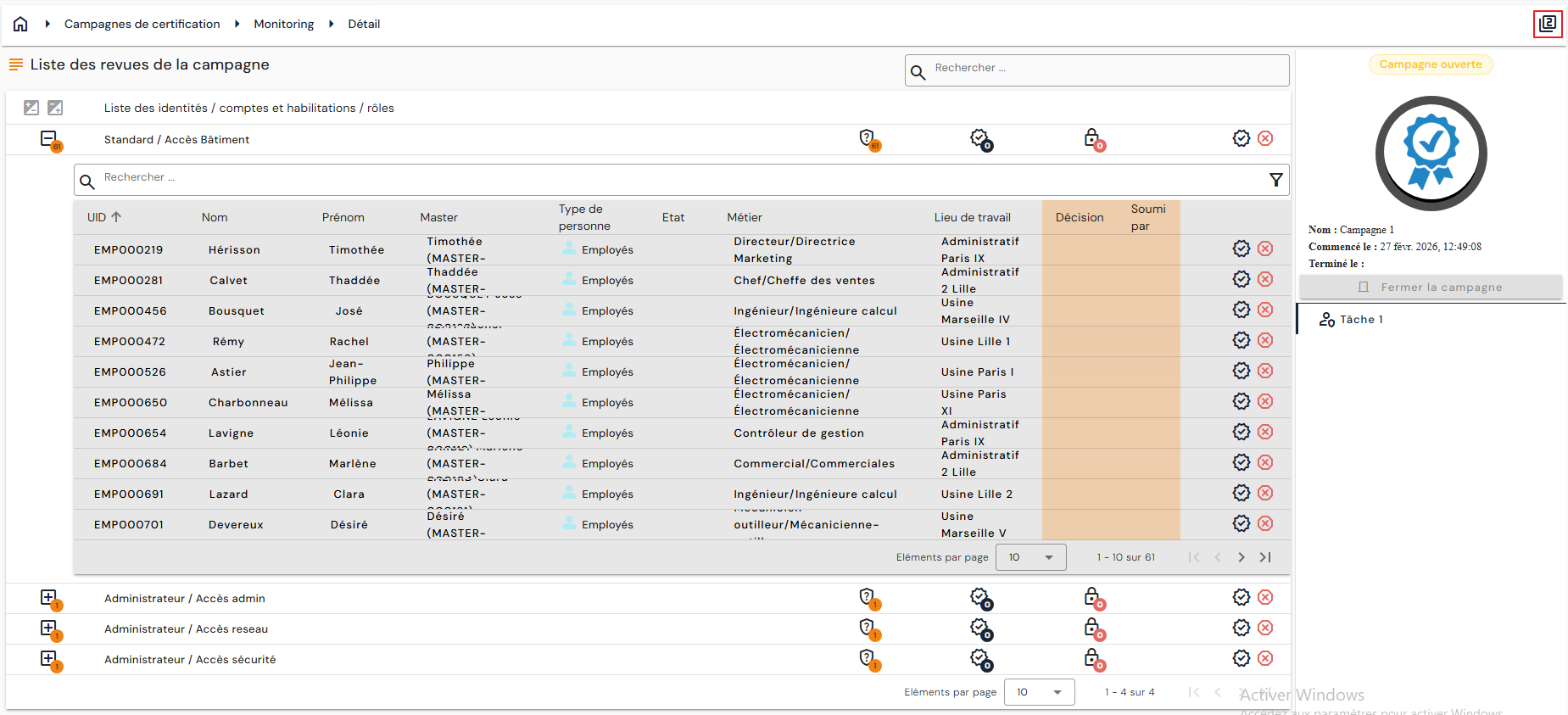
With this view, for each authorization or role to be certified, it is possible either to certify or reject for all the people or accounts, or to certify or reject individually.