Installation of the Edge Gateway Server
Note
As a reminder, switching to root on Debian machines must be done with the following command:
1 | |
Values used on this page
The following values are used in several commands and configuration files of this page. Enter them here: the commands displayed on this page are updated as you type.
A value used by a single command is entered in a table placed just before that command.
| Value | Variable | Definition |
|---|---|---|
IP_GW |
IP address of the Edge Gateway server. | |
URL_HTML5 |
Content of the URL field of the HTML5 Gateway declared in the administration console (for example HTML5-2). |
|
GW_NAME |
Name of the Edge Gateway through which the Mediation Controller reaches the HTML5 Gateway; the | character at the end of the line must be kept. |
|
ORGANIZATION_NAME |
Name of the organisation to which the Edge Gateways connect. |
Downloading the mirror and necessary tools
The CyberElements Bastion 4.7 mirror and the Systancia repository signature key for Debian 13 can be downloaded from this link (requires the creation of a client account): Systancia Marketplace
In addition to the mirror and key, third-party tools will be required for the installation process:
- An SSH client (on Windows, you can use PuTTY)
- An SCP client (on Windows, the WinSCP or FileZilla tools can be used)
Use the SSH client to connect remotely to your server.
Use the SCP client to transfer files to your remote machine.
Preparing for installation
Configuration of the network
It is highly recommended to define a static network address for the Edge Gateway server. To do this, you first need to retrieve the name of your machine's network interface and its MAC address. Run the following command as root:
1 | |
This command displays the name of the network interface, its status, its MAC address, and the interface settings.
Example
After the command is executed, the following output is displayed:
1 | |
The name of the network interface is ens192 and its MAC address is 00:50:56:a1:56:9f.
Once the network interface name and MAC address have been obtained, it is now possible to edit the machine's network configuration.
Edit the /etc/network/interfaces file to modify it using the following template:
| Value | Variable | Definition |
|---|---|---|
INTERFACE_NAME |
Name of the network interface, retrieved with the previous command. | |
MAC_ADDRESS |
MAC address of the network interface, retrieved with the previous command. | |
NETMASK |
Network mask associated with the IP addresses. | |
NETWORK_GATEWAY |
Default network gateway. | |
IP_DNS_1 |
IP address of the DNS server. | |
IP_DNS_2 |
IP address of a second DNS server (optional: left empty, it disappears from the configuration). | |
DNS_SUFFIX |
DNS suffix to use; without a suffix, delete the dns-search line. |
1 2 3 4 5 6 7 8 9 10 11 12 13 14 15 16 17 18 19 20 21 22 | |
Example
1 2 3 4 5 6 7 8 9 10 11 12 13 14 15 16 17 18 19 20 21 22 | |
Before applying the configuration, there are three more steps to complete.
The first is to install packages resolvconf and bridge-utils so that the DNS configuration specified in the previous file can be applied and the br0 interface can be used:
1 | |
The second is to check the configuration of the /etc/hosts file with regard to the machine's primary IP address (IP_GW).
To do this, edit the /etc/hosts file: after the Debian installation, its second line holds the address 127.0.1.1 followed by the machine name. Replace this address with IP_GW, so that the second line is in the following format:
| Value | Variable | Definition |
|---|---|---|
FQDN |
Fully qualified name of the machine (name and domain); without a domain, delete it from the line. | |
MACHINE_NAME |
Short name of the machine. |
2 | |
Example
If the machine is named EDGE-GATEWAY without belonging to a domain and its IP address IP_GW is 172.16.10.10, then the file would be completed as follows:
2 | |
If the machine belongs to the DOMAIN.LOCAL domain, then the file would be completed as follows:
2 | |
Attention!
An incorrect configuration of the file may cause an error when installing the collectd package.
All that remains is to restart the server:
1 | |
Configuring the APT package manager
Upload the files downloaded from the Systancia Marketplace to the /tmp/ directory on the server using an SCP client:
systancia.gpgcleanroom-4.7.0-build75.1097.D13-full_auto.tgz
Log in to the server as root, then run the following commands to unzip the Systancia repository, configure its use in APT, and authenticate it.
1 2 3 4 5 6 | |
We strongly recommend disabling the installation of unnecessary packages when running apt commands. To do so, run the following command:
1 | |
Then update the Debian packages already installed on the server:
1 2 | |
Recommendation
The security hardening guide details the integrity check of the packages and of the APT repositories, and the automation of Debian security updates: see R6 and R7.
Installation of the CyberElements Bastion Edge Gateway server
Installation of basic components
Start installing the components using the following command as root:
1 | |
After downloading all dependencies, a window will open asking you to select the server type. Select gateway:
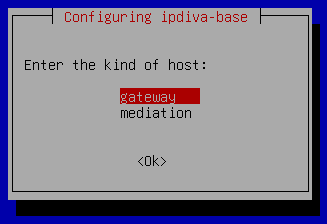
The values entered are recorded in /etc/ipdiva.conf. Check them:
1 | |
Example for a standalone Mediation Controller
1 2 3 4 5 6 | |
What should I do if there is an error?
If there is an error in the information you entered, continue installing the ipdiva-base package and then use the following command to reconfigure the server:
1 | |
Installation of Edge Gateway components
Next, start the installation of the Edge Gateway-specific components using the following command:
1 | |
The Edge Gateway server components are now installed. All that remains is to restart the machine so that the newly installed components can initialise:
1 | |
Installation of HTML5 Gateway components
Use the following command to start installing the HTML5 Gateway components on the Edge Gateway server:
1 | |
Use the following command lines to enable and configure the file transfer and virtual printer features:
1 2 3 | |
Configuration
Configurations prior to connecting the HTML5 Gateway
Recommendation
The security hardening guide details the hardening of the Apache configuration, the TLS protocols and the Content Security Policy: see Apache, TLS 1.2 and TLS 1.3 and Content Security Policy.
In order for HTML5 applications to work, additional settings must be configured on the Mediation Controller server. Log in to the Mediation Controller server as root.
Create or modify the /etc/ipdiva/httpd/commonParameters.extra.conf file to add a section equivalent to the following:
1 2 3 4 5 6 7 8 9 10 11 12 13 14 15 16 17 18 19 20 21 | |
Example
For a platform with the following settings:
- Organisation name:
my-organization-name - Declaration of the HTML5 Gateway in the administration console:
- Name:
html5-gateway - URL:
HTML5 - Protocol:
WebSocket
- Name:
- An Edge Gateway server has:
- An Edge Gateway service named
edge-gateway - An HTML5 Gateway service named
html5-gateway
- An Edge Gateway service named
The configuration file /etc/ipdiva/httpd/commonParameters.extra.conf created will be set up as follows:
1 2 3 4 5 6 7 8 9 10 11 12 13 14 15 16 17 18 19 20 21 | |
HTTP protocol (historical mode)
The configuration above applies to an HTML5 Gateway declared with the WebSocket protocol,
recommended because it is the most efficient. For an HTML5 Gateway declared with the HTTP
protocol (historical mode, the value proposed by default by the administration console), the
section to add is a single block, without a final / after the URL:
1 2 3 4 5 6 7 8 | |
URL_HTML5, GW_NAME and ORGANIZATION_NAME are replaced as for the WebSocket protocol, and
the X-IPdiva-Service line takes the same value as in that configuration. Each HTML5 Gateway
has its own URL: both sections can coexist in the file, for two HTML5 Gateways.
Before applying the new settings, you must check that the new configuration does not cause any blocking errors for the Apache2 web server.
To do this, run the following command:
1 | |
If the response is Syntax OK then the changes can be applied with the command below. Otherwise, check your configuration in the /etc/ipdiva/httpd/commonParameters.extra.conf file.
1 | |
Connecting the Edge Gateway and HTML5 Gateway
Attention!
If you use certificates issued by a certification authority (CA) other than Systancia's for the SSL Router component or for the web certificate of the Mediation Controller, you must add the root CA to the Edge Gateway's trusted CAs before pairing: add the SSL Router's root CA to the trusted CAs for the Edge Gateway or HTML5 Gateway connection.
To configure the Edge Gateway and HTML5 Gateway instances on the server, follow the information provided in the following documentation: Pairing the server