Configure an SSH key alias
An alias of type SSH key lets the password vault hold a private SSH key instead of a password. Users open their SSH session without ever seeing the key, and the key can be rotated without touching their habits.
This page covers the whole path: generating the key pair on the target server, then declaring the alias in the vault.
Declare the SSH application first
An SSH key alias is attached to SSH applications already declared in the console, and it is not compatible with a standard SSH application: selecting one makes the alias refuse to save. Declare the privileged SSH application that will use the key before starting, otherwise the list of applications in the alias window will read No SSH application.
Step 1 — Generate the key pair on the server
Log in to the server the access is being configured for, using the account the key-based access is meant for.
Generate an RSA key pair:
1 | |
my_vault_key is the name of the files holding the keys — here my_vault_key and my_vault_key.pub, written to the current directory.
Set a passphrase, or plan for rotation
The command asks for a passphrase for the private key. Enter one. If you leave it empty, the key alone is enough to open the account, and the rotation policy set on the alias becomes the only thing that limits how long a leaked key stays usable.
Add the public key to the keys authorised for that account. If the ~/.ssh/ directory already exists, the message the first command returns can be ignored:
1 2 | |
Retrieve the private key (my_vault_key) from the server — through an SFTP client, for instance.
The private key is a text file
Its content is base64-encoded, so it can also be displayed with cat and saved as a text file on the workstation. Whichever way you retrieve it, it must reach the console unaltered: its content starts with -----BEGIN ... PRIVATE KEY-----, or with PuTTY-User-Key-File- for a key in PuTTY format.
Step 2 — Create the alias in the vault
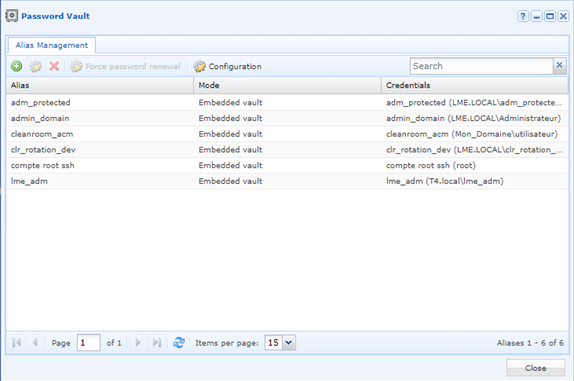
Open the Password vault module and click +.
In the Add alias window, select the SSH key type, then fill in the fields.
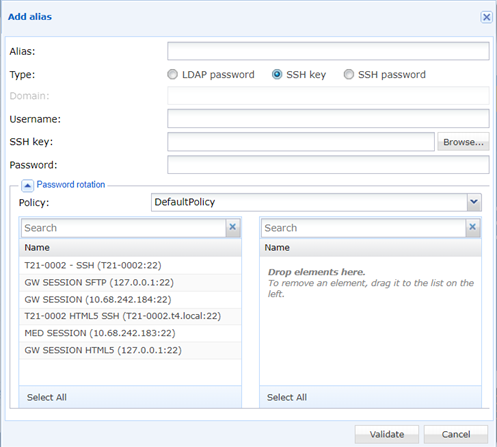
| Field | What to enter |
|---|---|
| Alias | The name of the alias. It is forced to lower case, and the @ , < & > " characters are rejected. |
| Type | SSH key. |
| Username | The account the key was generated for in step 1. |
| SSH key | The private key file retrieved in step 1. |
| Password | The passphrase of the key. Leave it empty only if the key has none. |
| Policy | In the Password rotation box, the rotation policy applied to the alias. |
| (SSH applications) | Drag the SSH applications that will use this alias into the right-hand list. |
The exhaustive description of the fields and of their constraints is in the reference page: Add an alias.
Click Validate to save the alias.
The password field does not hold the account password
For an SSH key alias, Password is the passphrase protecting the private key — not the password of the target account. An alias that authenticates with a password is an alias of type SSH password, which is a different type.