Microsoft Entra ID
This article presents the configuration of SAMLv2 identity federation between Microsoft Entra ID and CyberElements.
Configuring a SAML identity provider with Microsoft Entra ID
Creating the enterprise application
Log in to the Microsoft Entra admin center: Microsoft Entra admin center
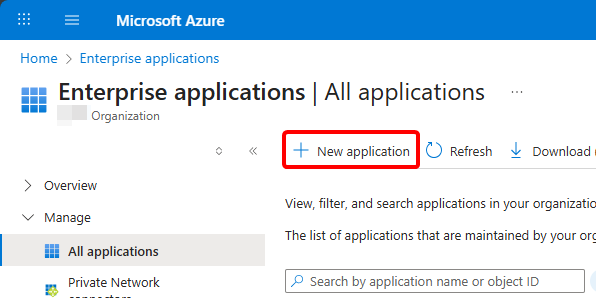
In the menu, open Entra ID > Enterprise apps, then create a new application with New application:
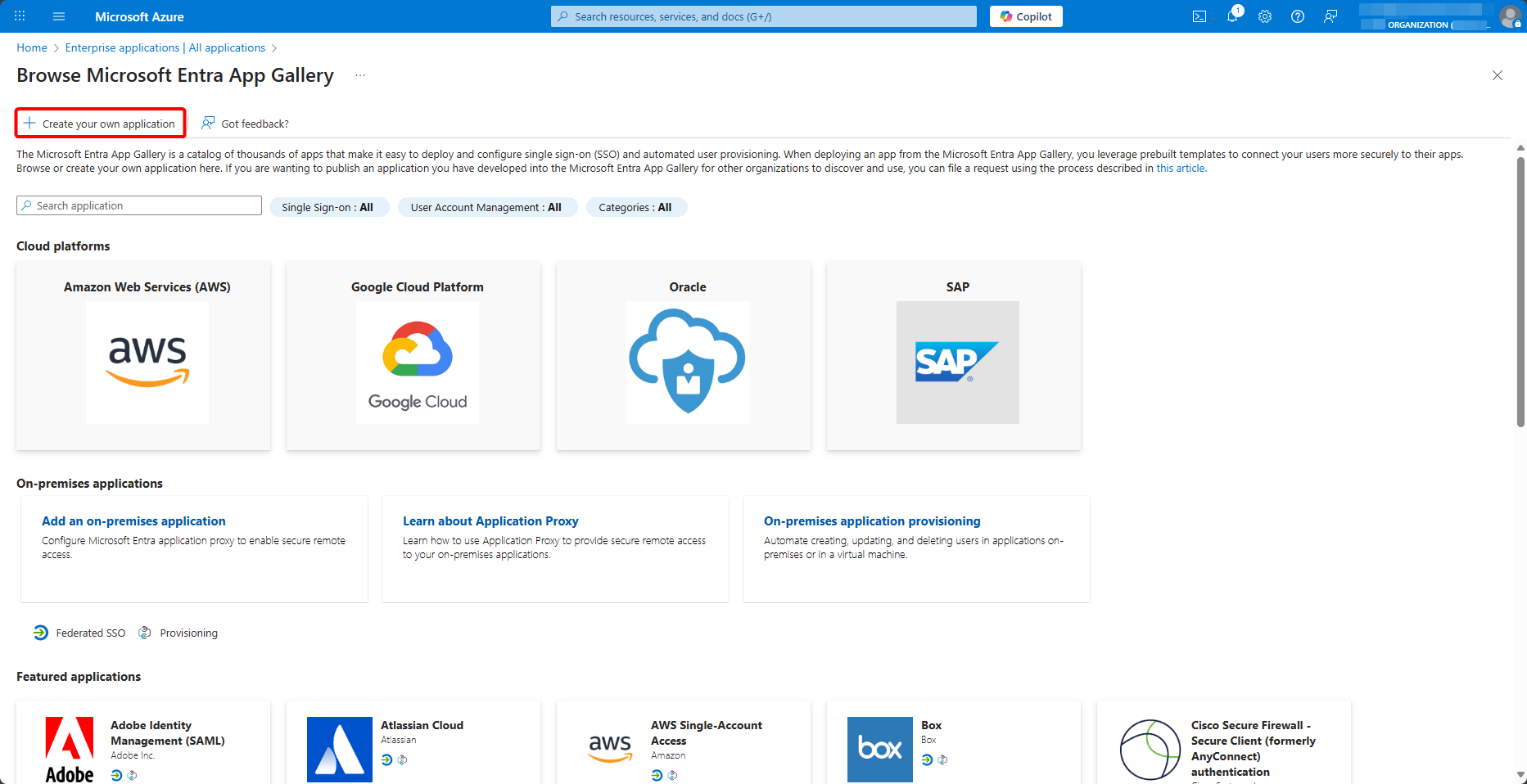
In the gallery, select Create your own application:
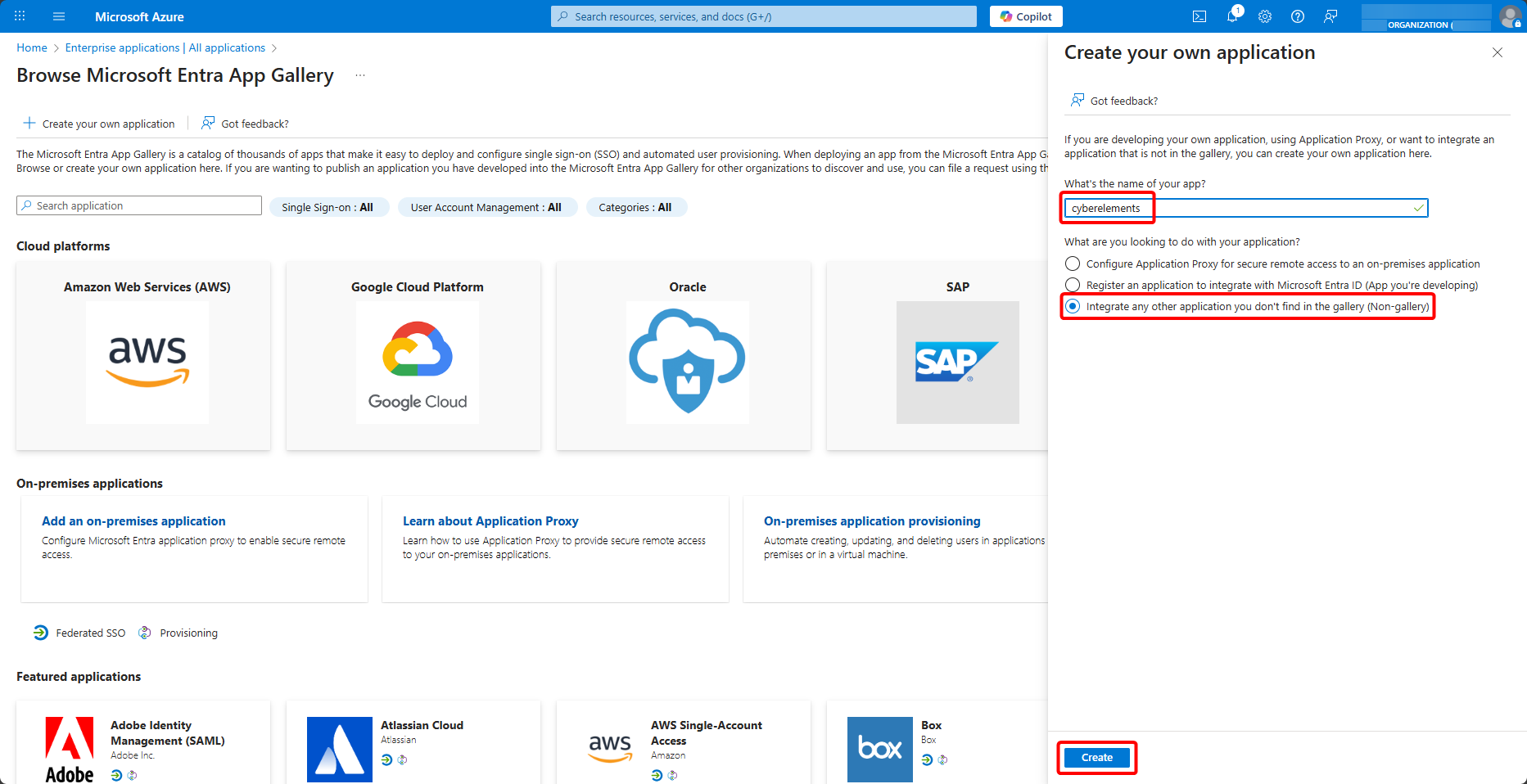
Name the application, select Integrate any other application you don't find in the gallery (Non-gallery) and create it with Create:
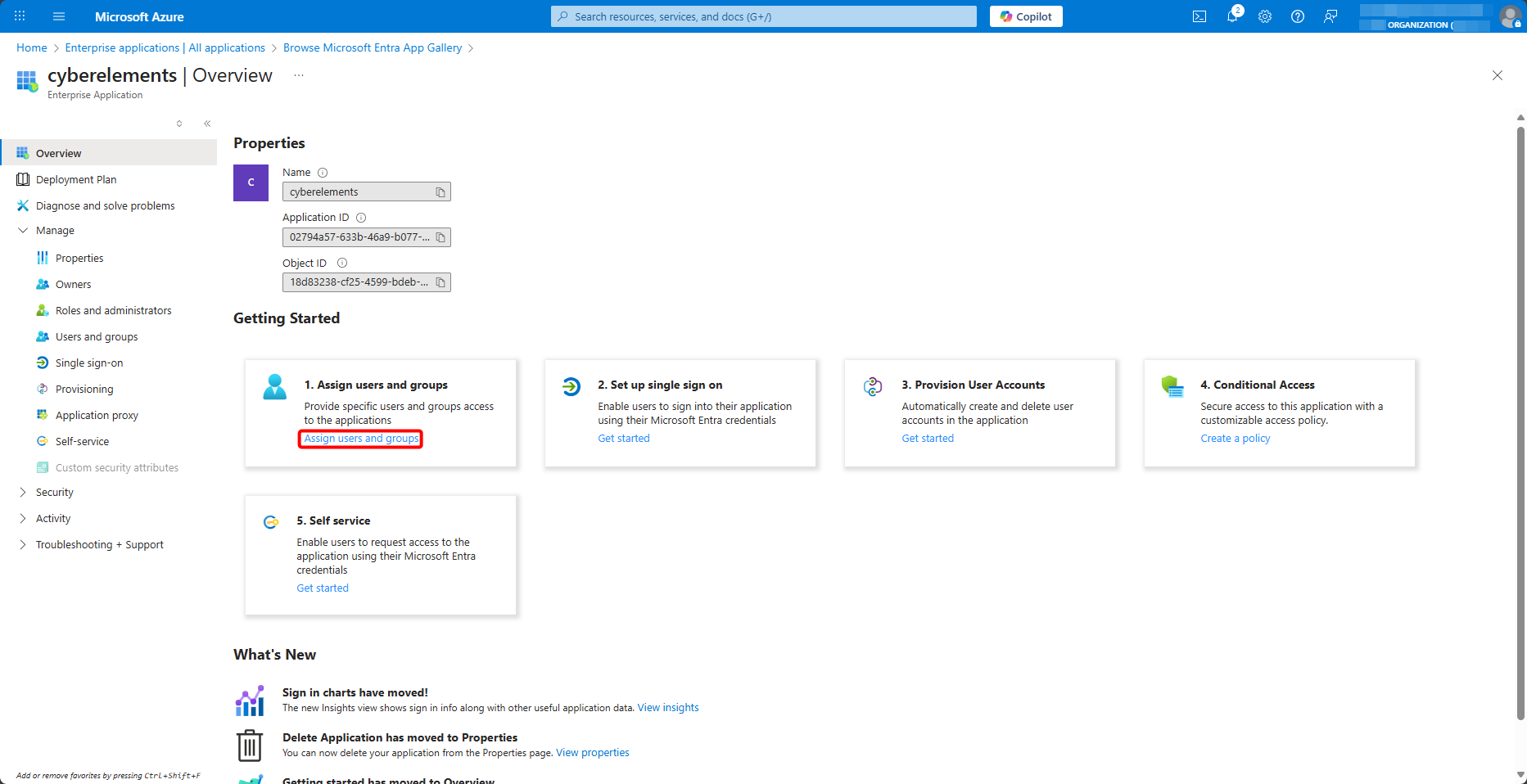
Once your enterprise application has been created for CyberElements, assign it the authorized users and groups, from Users and groups > Add user/group:
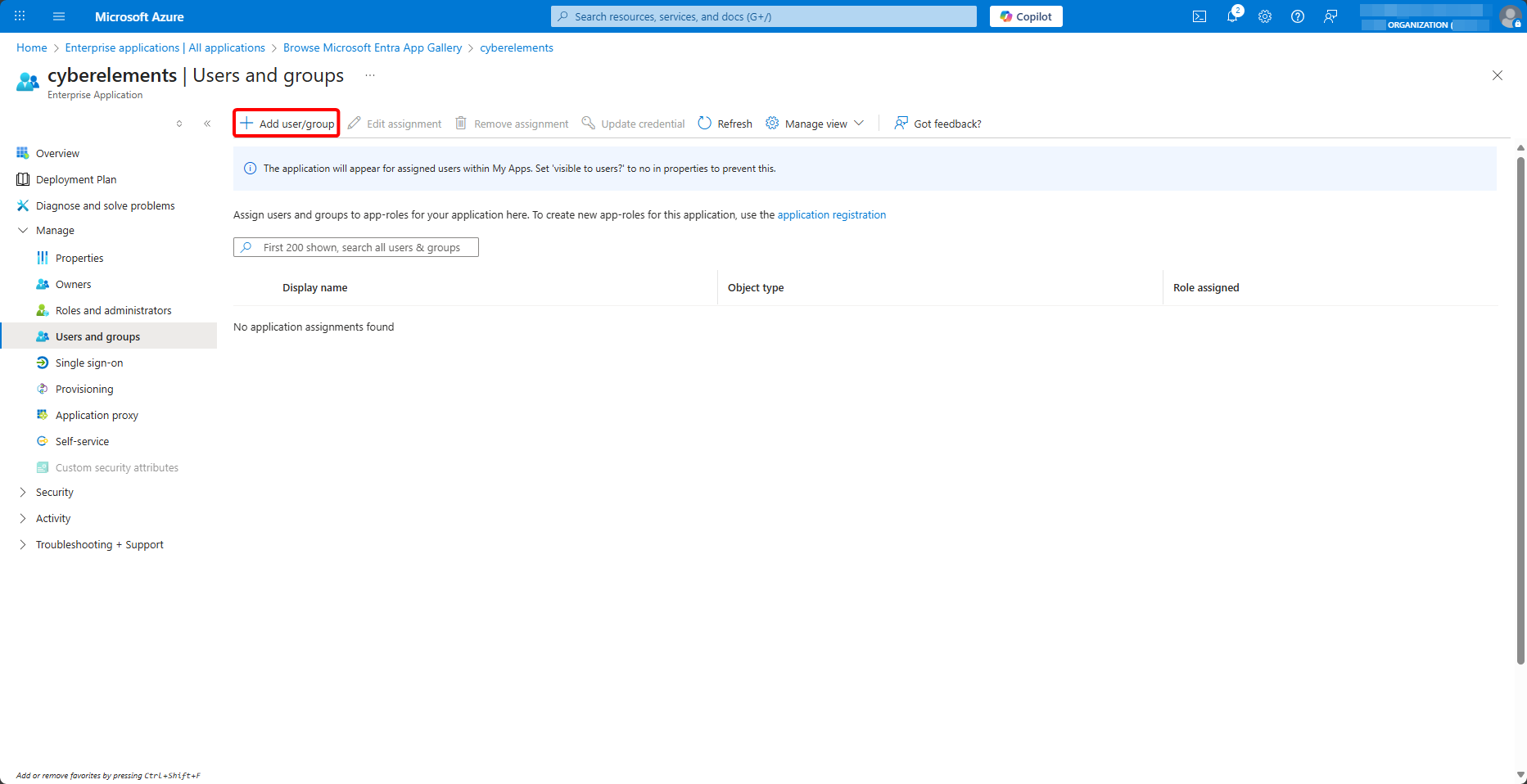
Assign groups to the application
The group claim configured below only sends the groups assigned to the application that the user is a member of. A user assigned to the application on their own can log in, but without any group: the applications opened to them through a group are then not offered to them.
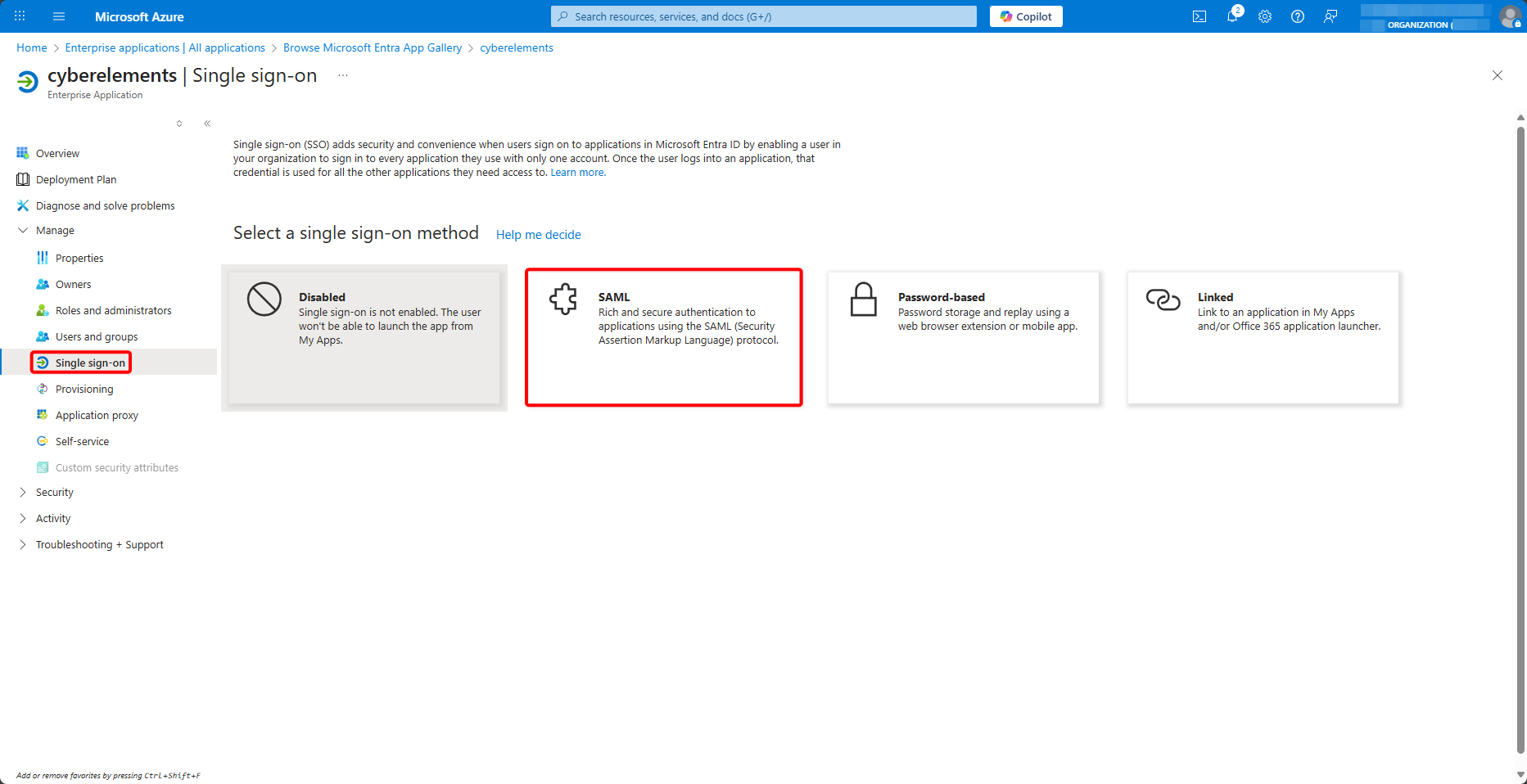
Next, go to the Single sign-on menu and select the SAML method:
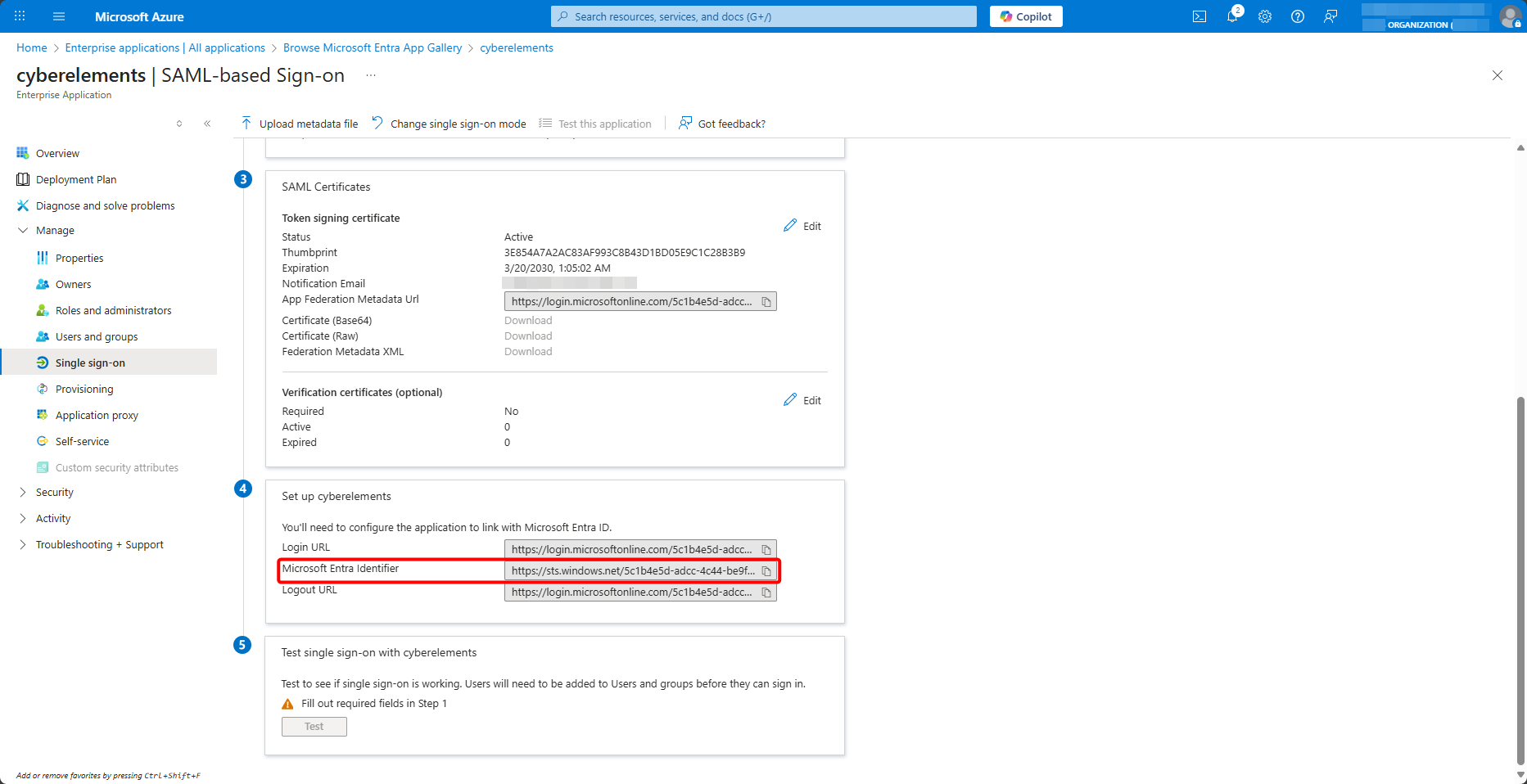
At the bottom of the page, copy the value of Microsoft Entra Identifier:
Creating the SAML domain in CyberElements
Keep the tab open and, from the CyberElements administration console, open the identity providers:
Then add a new one:
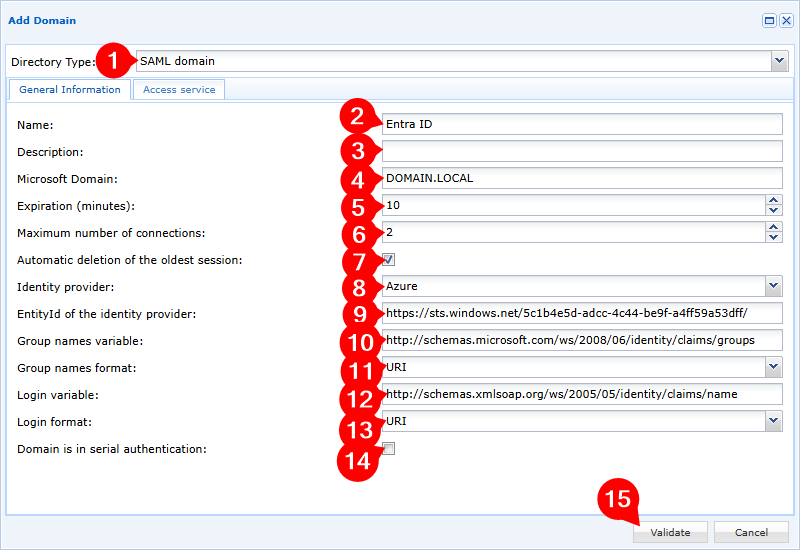
- Select the
SAML domaindomain type - Name your new domain
- Add an optional description
- Specify your local domain; it will be used by the SSO mechanism when it is enabled
- Adjust the expiration time of inactive user sessions (user sessions in which no CyberElements application is running)
- Adjust the number of simultaneous sessions allowed for each user
- Enable or disable the automatic deletion of the oldest session if the user logs in when they have already reached the maximum number of simultaneous sessions
- Select the
Azureidentity provider - Enter the value of
Microsoft Entra Identifierretrieved earlier - Enter the group names variable:
groups - Select the
Unspecifiedformat for the group names variable - Enter the login variable:
name - Select the
Basicformat for the login variable - Add the domain to the serial authentication or not
- Validate the creation of the domain
Why two different formats
Microsoft Entra ID sends the name claim in the Basic format, set below when configuring it. However, it sends the groups claim without any format: its group claim panel does not allow one to be chosen. The Unspecified format matches what is actually received; with the Basic format, the groups are not recognized.
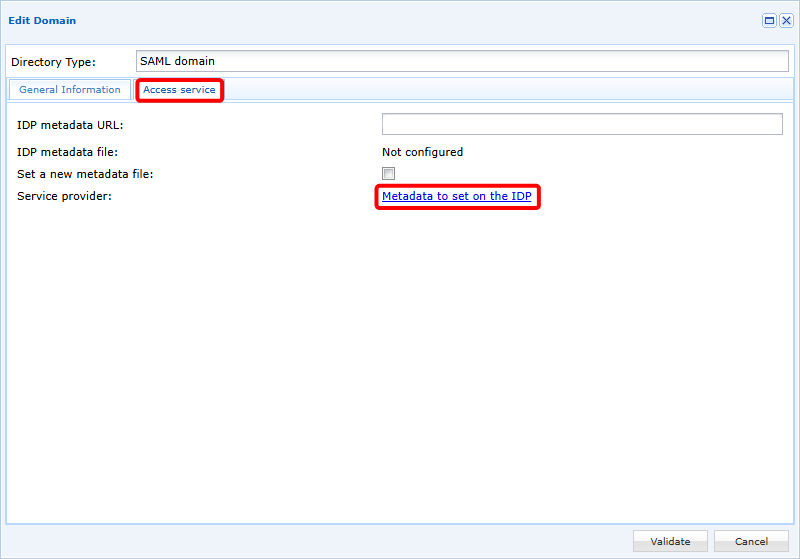
Then edit the domain again to go to the second tab, Access service. From there, download the configuration metadata for the IDP with the Metadata to set on the IDP link:
Configuring single sign-on in Microsoft Entra ID
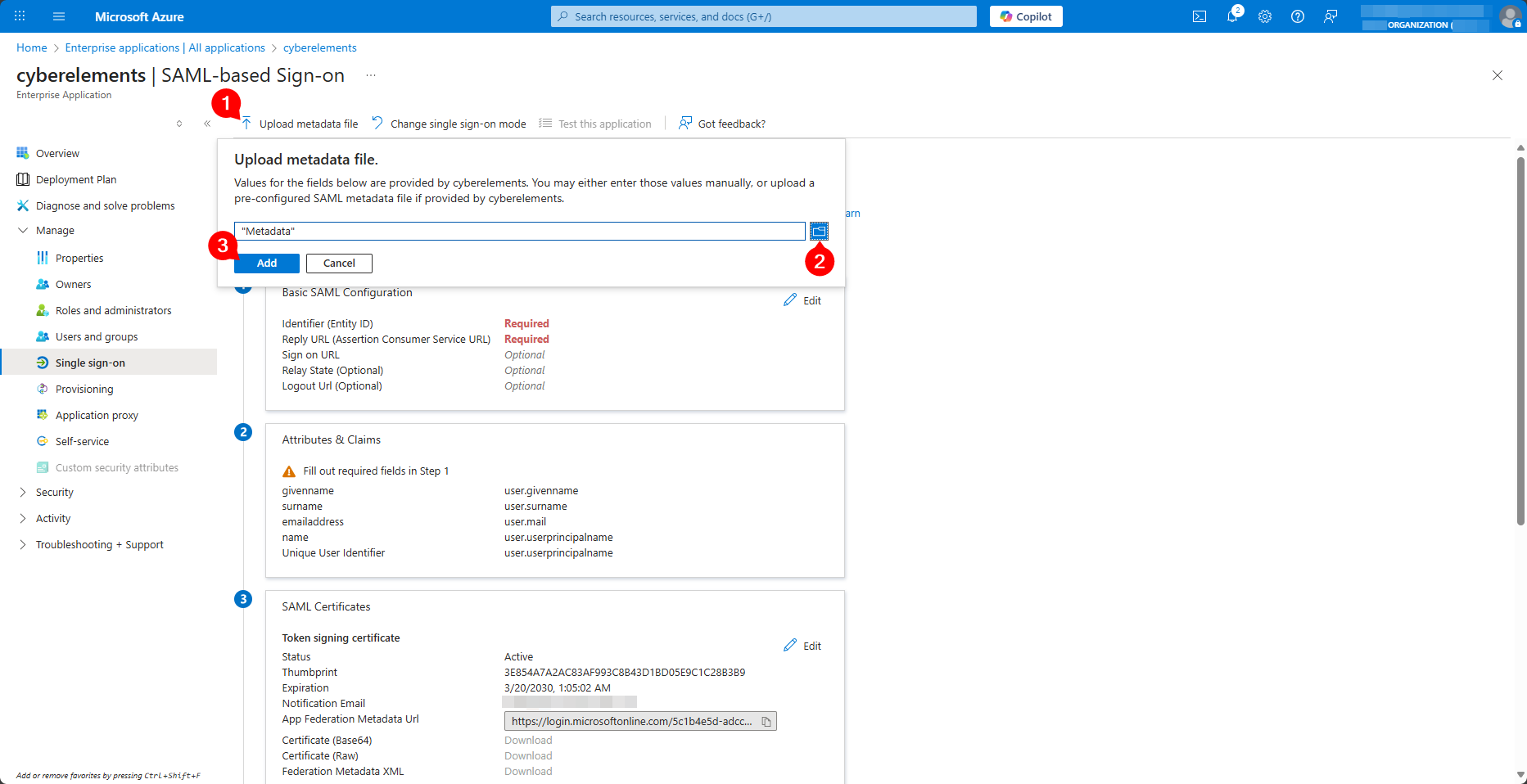
Go back to the configuration tab of the enterprise application, and upload the Metadata file retrieved from CyberElements with Upload metadata file:
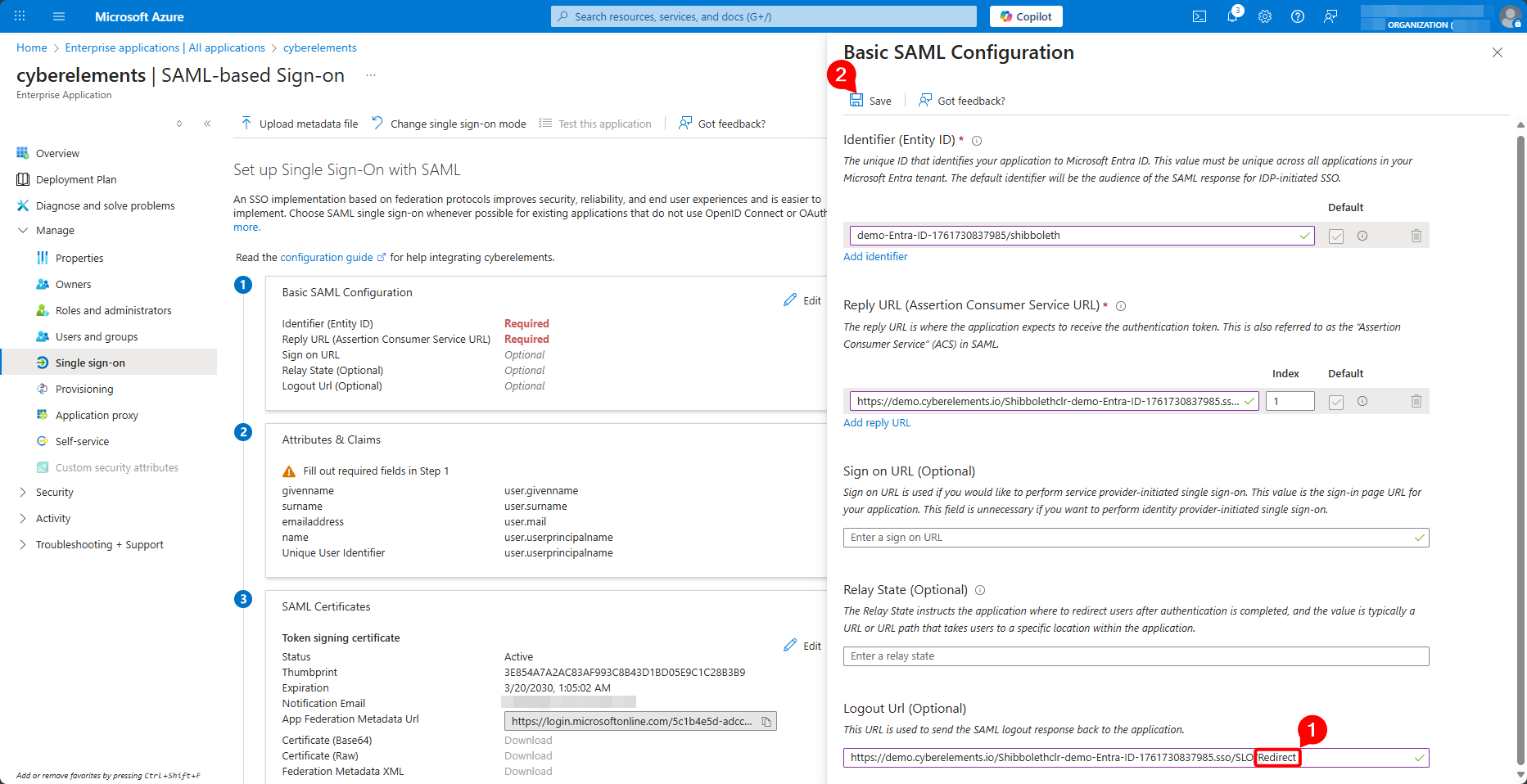
The Basic SAML Configuration panel opens, prefilled. Change the value of Logout Url (Optional) by replacing /SLO/Artifact with /SLO/Redirect at the end, and save the configuration with Save:
Why change the logout URL
The CyberElements metadata declares several logout addresses, and Microsoft Entra ID keeps the first one. That one uses the HTTP-Artifact binding, which Microsoft Entra ID does not support for logout.
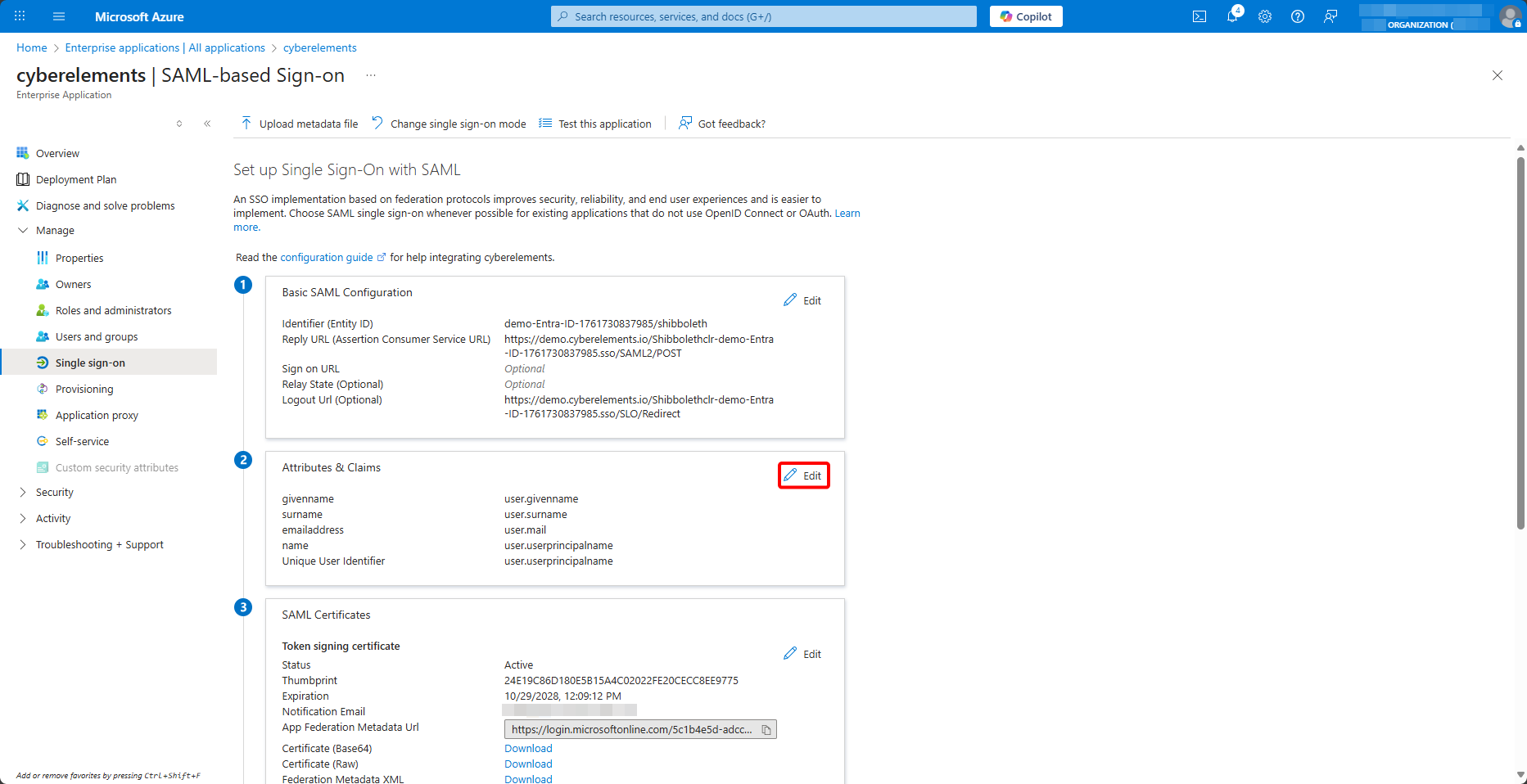
Then edit the attributes and claims, from Attributes & Claims > Edit:
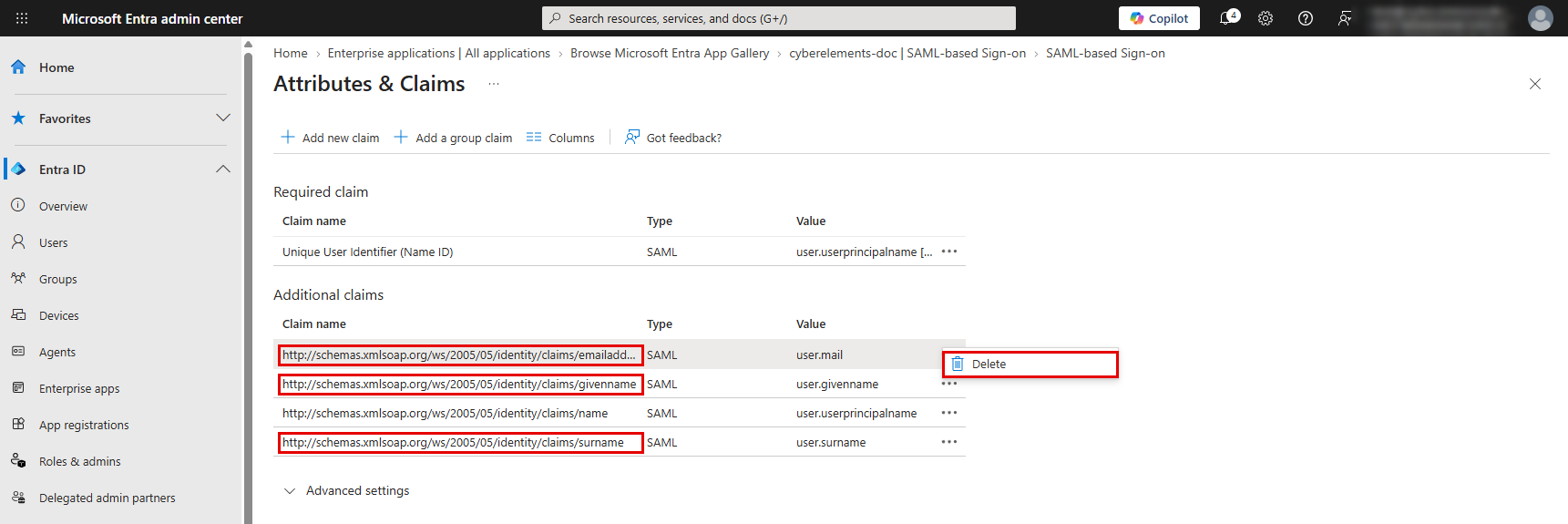
Delete the emailaddress, givenname and surname claims, which CyberElements does not use, with Delete in their … menu:
Click on the name claim and, in the Manage claim panel:
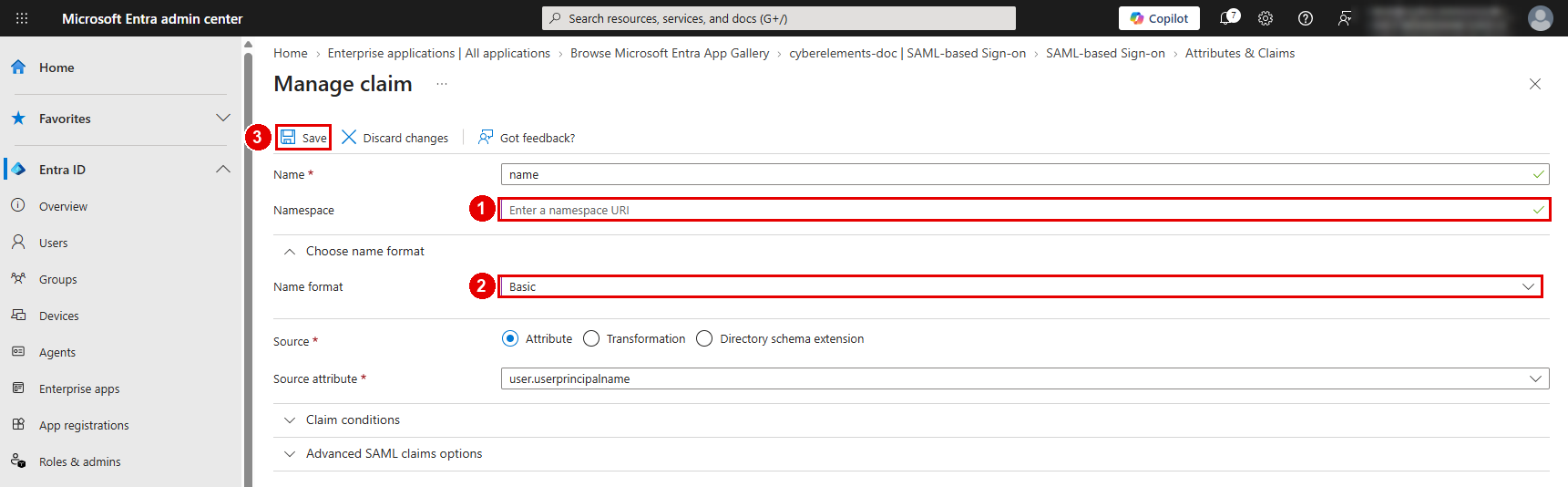
- Clear the
Namespacefield - Expand
Choose name formatand select theBasicformat - Save with
Save
Then add a group claim:
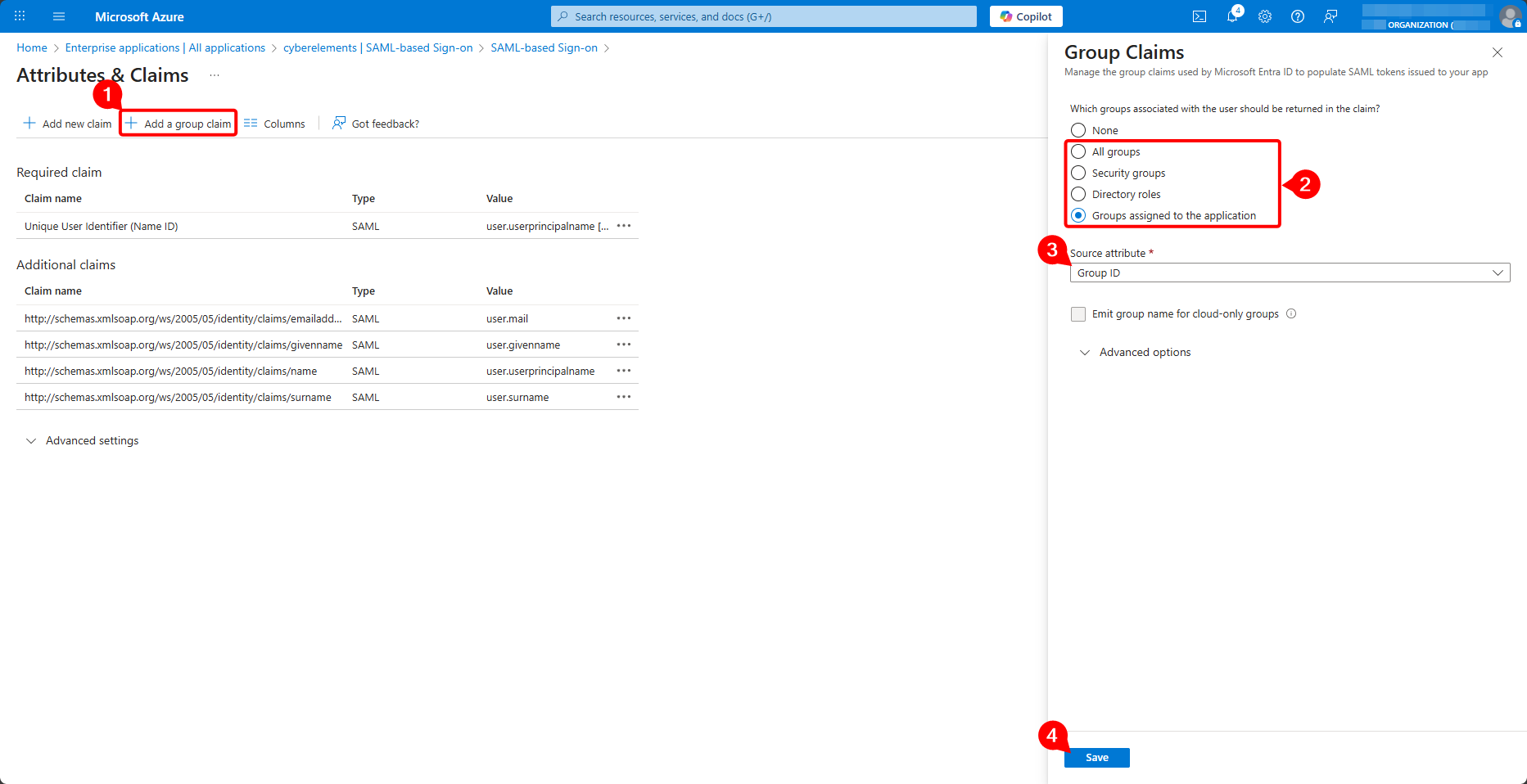
- Click on
Add a group claim - Select the groups to send:
Groups assigned to the application(recommended) orAll groups - Leave the source attribute set to
Group ID: the ID of the group object is sent - Expand
Advanced options, checkCustomize the name of the group claim, enter the namegroupsand leave theNamespace (optional)field empty - Save with
Save
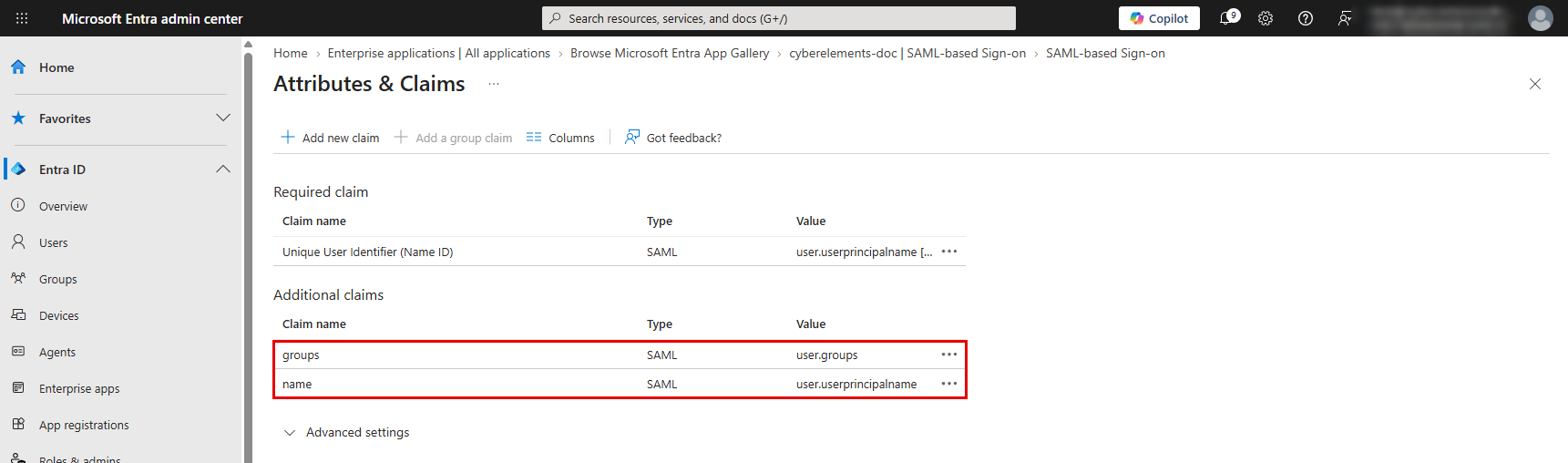
Check the resulting list: apart from the unique user identifier, only the groups and name claims should remain:
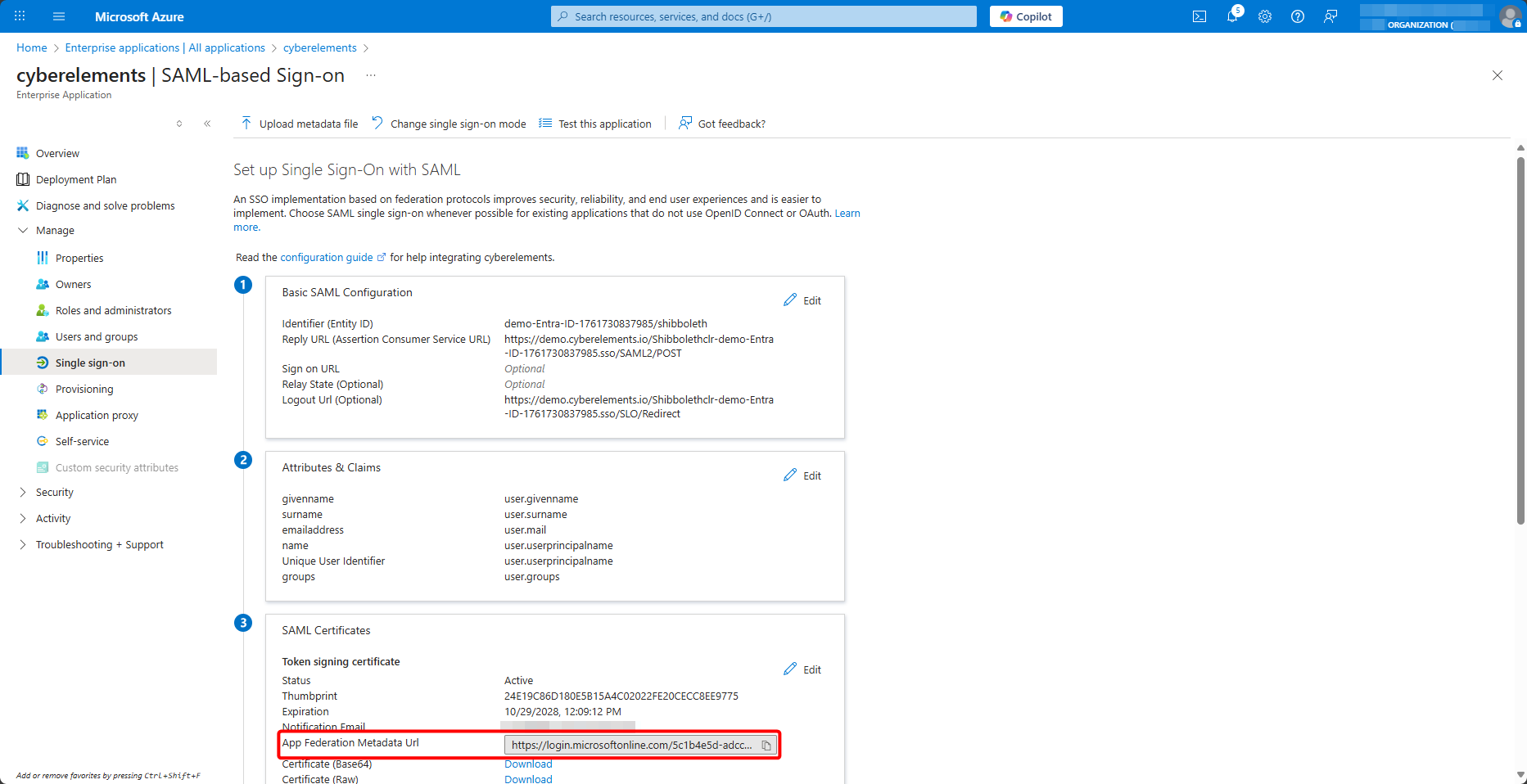
Finally, retrieve the federation metadata URL, App Federation Metadata Url:
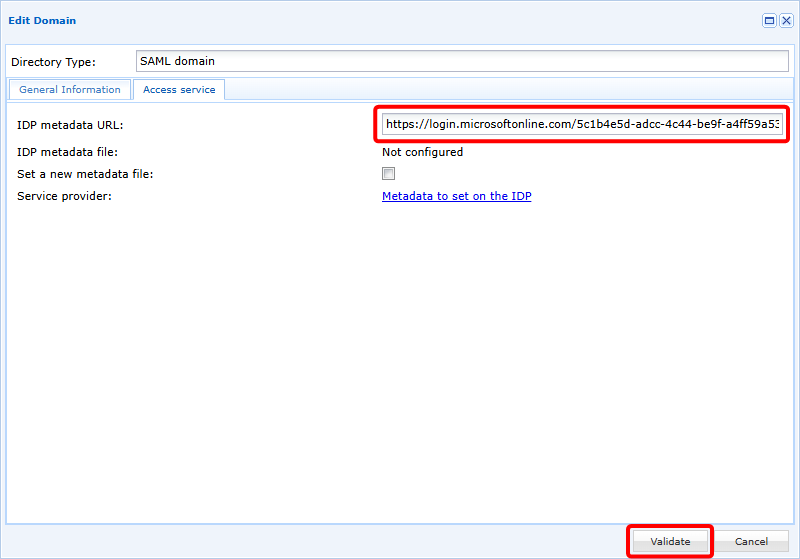
Go back to the CyberElements administration console, Access service tab of the domain, enter this URL in IDP metadata URL and validate with Validate:
Once validated, your new SAML domain is ready to use.
Adding groups
The new SAML domain is directly usable, but because SAMLv2 does not provide for direct exchanges between the Identity Provider (IDP) and the Service Provider (SP), which in our context is CyberElements, it cannot know about the user groups present on Entra ID.
To overcome this problem, user groups can either be synchronized on an ad hoc basis or added manually to the product.
Ad hoc synchronization
Ad hoc synchronization of Entra ID user groups is possible using the device login Azure feature.
This feature will synchronize all groups present on Entra ID.
To perform this synchronization, open the list of available domains and click on the synchronization button:
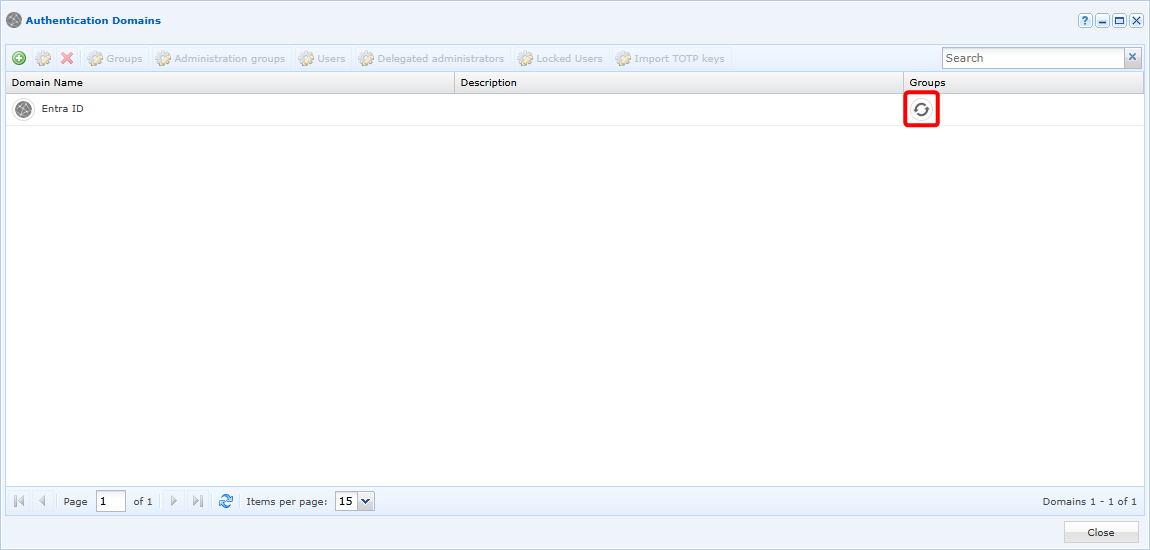
A window will open in which you will need to copy a code and paste it into the Azure authentication accessible via the link provided:
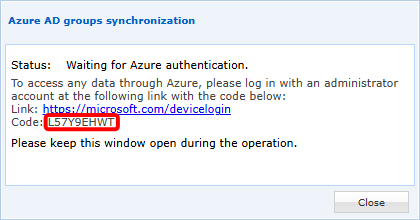
After authentication, CyberElements will synchronize all groups to make them usable in the solution. Depending on the number of groups to be synchronized, the operation may take up to 5 minutes (for thousands of groups to be synchronized).
Manually
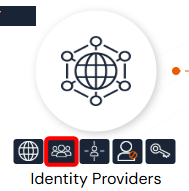
Open the user group management:
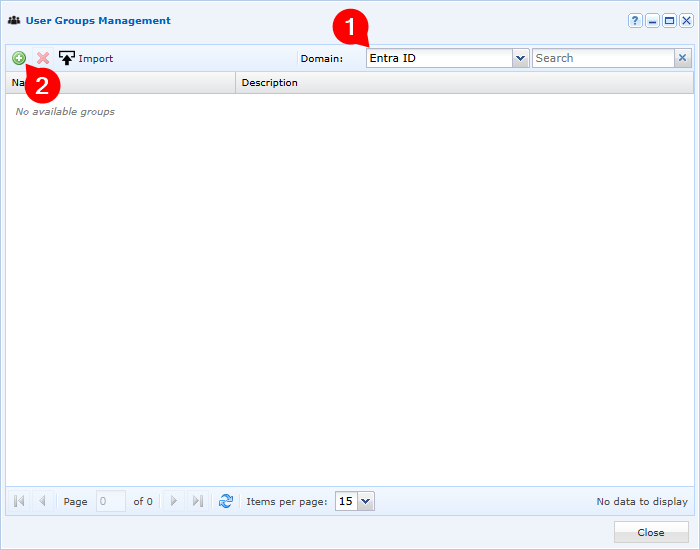
Select your Entra ID domain and click on the add button:
Finally, fill in the various fields to add a group present on Entra ID:
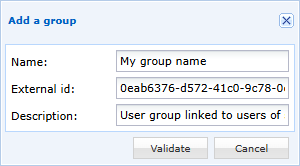
- Enter the display name of your user group in CyberElements (to simplify management, it is recommended to name it the same as on Entra ID)
- Specify the ID of the group object, which can be retrieved from Azure group management
- Optionally, add a description to the user group