Automatic logs
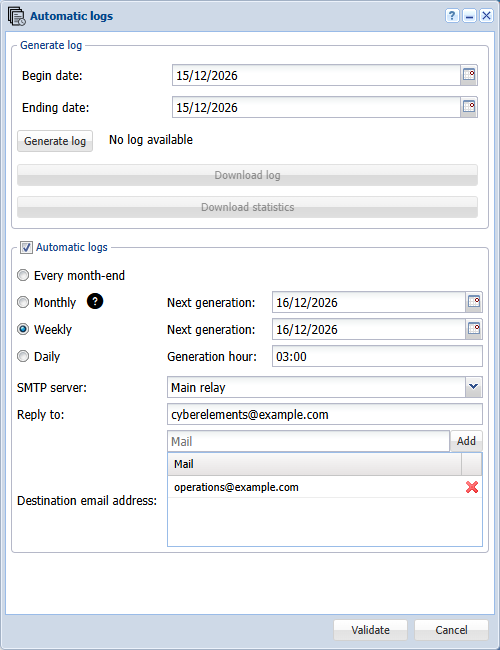
Automatic logs produce two activity CSV files: a detailed log and a numeric summary. They can be requested once for a date range, or produced and emailed on a schedule.
They provide a regular usage trace of the platform without anyone having to open the console.
File contents
The screen does not state the content produced, which is useful to know before setting up a recurring send.
The log is an export of the event log restricted to three families of events, and to those only: user portal logins, application launches, and direct access session launches.
The summary is a count drawn from the same data, in four tables: the number of application launches per user and domain, then per application; the number of direct access sessions per user, then per machine and gateway.
Administration actions
This is not an administration log. Creations, modifications and deletions performed in the console are not in it, and neither are console logins, application closings, gateway connections or password actions. An administration report or an audit trail is taken from the event log, which carries everything.
On-demand generation
The generation is launched after entering a start date and an end date. It is asynchronous: the console polls the server every five seconds, and the two download buttons only become active once the job is finished.
Download buttons
The download buttons are always inactive when the window opens. They only become active after a generation completed in the current window. A report produced yesterday, or by the schedule, is therefore not offered here, and a scheduled report that went out as an attachment leaves no file on the server. Retrieving a report from the console means launching a generation again.
Only one generation at a time: the button stays inactive until the previous one has finished.
Scheduled sending
The scheduling section is collapsed and inactive by default; it is enabled with the checkbox in its title. Four recurrences are offered: monthly on a given date, at every month-end, weekly, or daily. A single execution time applies to all of them.
Single schedule
Only one schedule exists at a time. Saving replaces the previous one, and clearing the checkbox deletes it. Two recipient lists cannot be served at two different rhythms.
Three items have to be filled in for the save to be accepted:
- a declared SMTP server: it will carry the send;
- a sender address, which also serves as the reply address;
- at least one recipient in the list.
Empty recipient list
If scheduling is active and the list is empty, saving is refused: the console returns a generic warning and highlights the grid. The cause is not named: faced with an unexplained refusal to save, the recipient list is the first thing to check.
First send in daily mode
If the chosen time has already passed today, the first run is postponed to the next day; otherwise it happens the same day. Setting up a daily schedule early in the morning therefore produces a first report a few hours later, over a period that is still empty.
Period covered by a scheduled report
The two dates at the top of the window serve the on-demand generation only. A scheduled report covers the interval preceding its run: the last twenty-four hours for a daily schedule, the last seven days for a weekly one, the previous month for a monthly one.
Report continuity
Reports follow one another with no gap and no overlap: each run starts where the previous one ended. The recurring send is thus usable as a series: two consecutive reports never count the same launch twice, and a delayed run stays aligned on the scheduled time rather than on the actual one.
Email content
The email carries both files as attachments, except when the detailed log exceeds 1 MB. In that case the files are written to a directory on the server and the message carries only a pointer to that directory.
Large report
A large report is not sent, it is dropped on the server. Nothing on screen announces it, and the threshold cannot be changed. On a busy platform, a daily send can therefore switch without warning from an email with attachments to an email pointing at a directory the recipient may not have access to. The content stays available from the module, by launching a generation again.
Limits
- Three families of events only: portal logins, application launches, direct session launches. All the rest of the log is absent from it.
- One schedule, one recipient list, one time of day.
- The scope of the report cannot be adjusted: no domain filter, no user filter, no choice of event families.
- No history of the reports produced: each generation overwrites the previous one.
- Sending depends on a working SMTP server; a send failure is not reported in the screen.
- One generation at a time per tenant: asking for a report while a scheduled one is running is refused with a generic error message that does not say why.
- In Cluster, scheduled tasks only run on the master node; in Standalone, on the main server. For a report that does not arrive, the server's role is therefore the first point to check.
Right required for scheduling
A delegated administration profile that grants automatic logs allows generating and downloading a report, but not saving the schedule: that action requires the write right on Logs. Nothing on screen indicates it, and the refusal takes the form of a generic error message.
Field-by-field details are in the module reference.