Setting up two-factor authentication using behavioral biometrics with Neomia Pulse
This article describes the procedure for configuring and activating Neomia Pulse artificial intelligence-based MFA.
This does not require any additional devices for the user to identify themselves based on how they type on their keyboard.
Prerequisites
Only four prerequisites are necessary to ensure that Neomia Pulse MFA works:
- Retrieve your Neomia Pulse API key for CyberElements Bastion
- Open
TCP 443access between the Mediation Controllers andapi.neomia.ai - Use user authentication domains of type
localorLDAP, as Neomia Pulse cannot be used with domains of typeanonymeorSAMLon CyberElements Bastion - Apply another type of MFA (OTP, TOTP, or Radius) on the same domain
Neomia Pulse MFA settings and activation
To enable Neomia Pulse MFA on CyberElements Bastion, you must edit the authentication domain and:
-
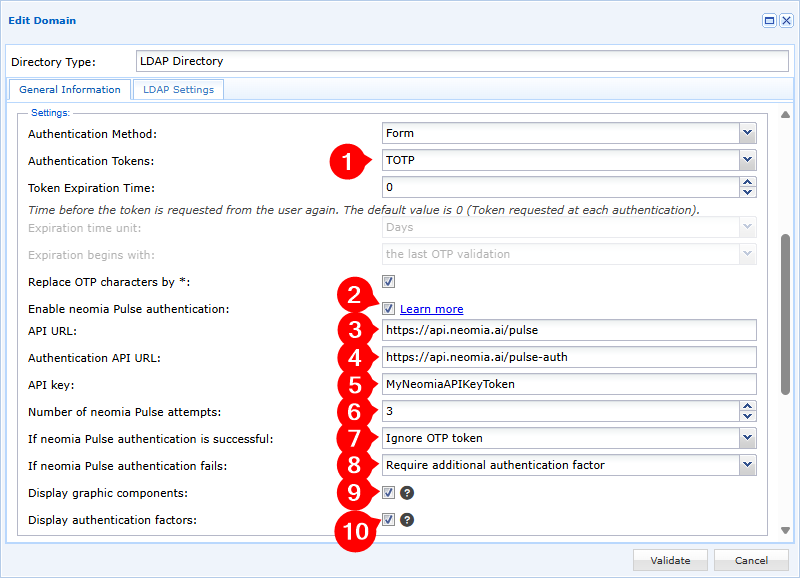
Enable at least one authentication token on the authentication domain
-
Enable the Enable Neomia Pulse authentication option
-
Set the URL for connecting to the Neomia Pulse API, which can be found in the Neomia Pulse Dashboard in
Management>Services. The default value ishttps://api.neomia.ai/pulse -
Define the URL for connecting to the Neomia Pulse authentication API, which can be found in the Neomia Pulse Dashboard in
Management>Services. The default value ishttps://api.neomia.ai/pulse-auth -
Enter your API key, which can be found in the Neomia Pulse Dashboard in
Management>Services. -
Specify the number of behavioral identification attempts the user will be subjected to,
0indicating that there will be an infinite number of attempts -
Configure how authentication works:
Ignore OTP token: if Neomia Pulse MFA validates the user, no other MFA will be requestedStrengthen the authentication with an additional factor: if Neomia Pulse MFA validates the user, they will still have to validate one of the MFAs configured in step 1
-
Configure how authentication works if Neomia Pulse fails to validate the user:
Block the user: the user's account is immediately blocked on CyberElements BastionRequire an additional authentication factor: the user can still log into CyberElements Bastion if they validate one of the MFAs configured in step 1
-
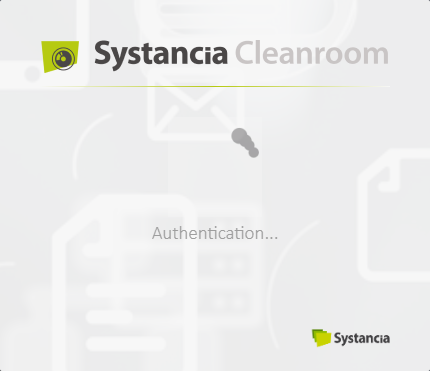
Choose whether or not to display graphical components when analyzing keystrokes (after entering words):
With graphical components Without graphical components 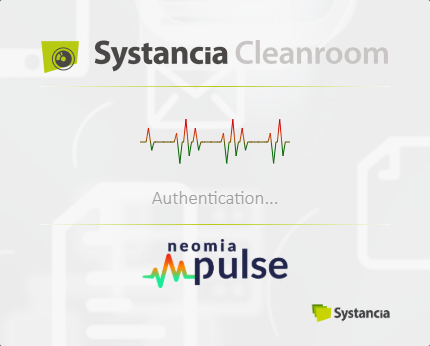
-
Choose whether or not to display authentication factors and their validity for authentication on the user portal (information visible at the top left of the user portal):
With authentication factors Without authentication factors Case of Neomia Pulse validation but with additional MFA to be validated: 
Case of Neomia Pulse invalidation but with additional MFA validated:
Case of single Neomia Pulse validation:

More information
More information about Neomia Pulse is available on its documentation website: Neomia Pulse Documentation